
Wi-Fi & Networking
Wi-Fi Connected but No Internet? Safe Ways to Isolate the Cause
A Wi-Fi connection only confirms that your device can communicate with the local network. Use these careful checks to determine whether the problem is your computer, network equipment, or internet service.
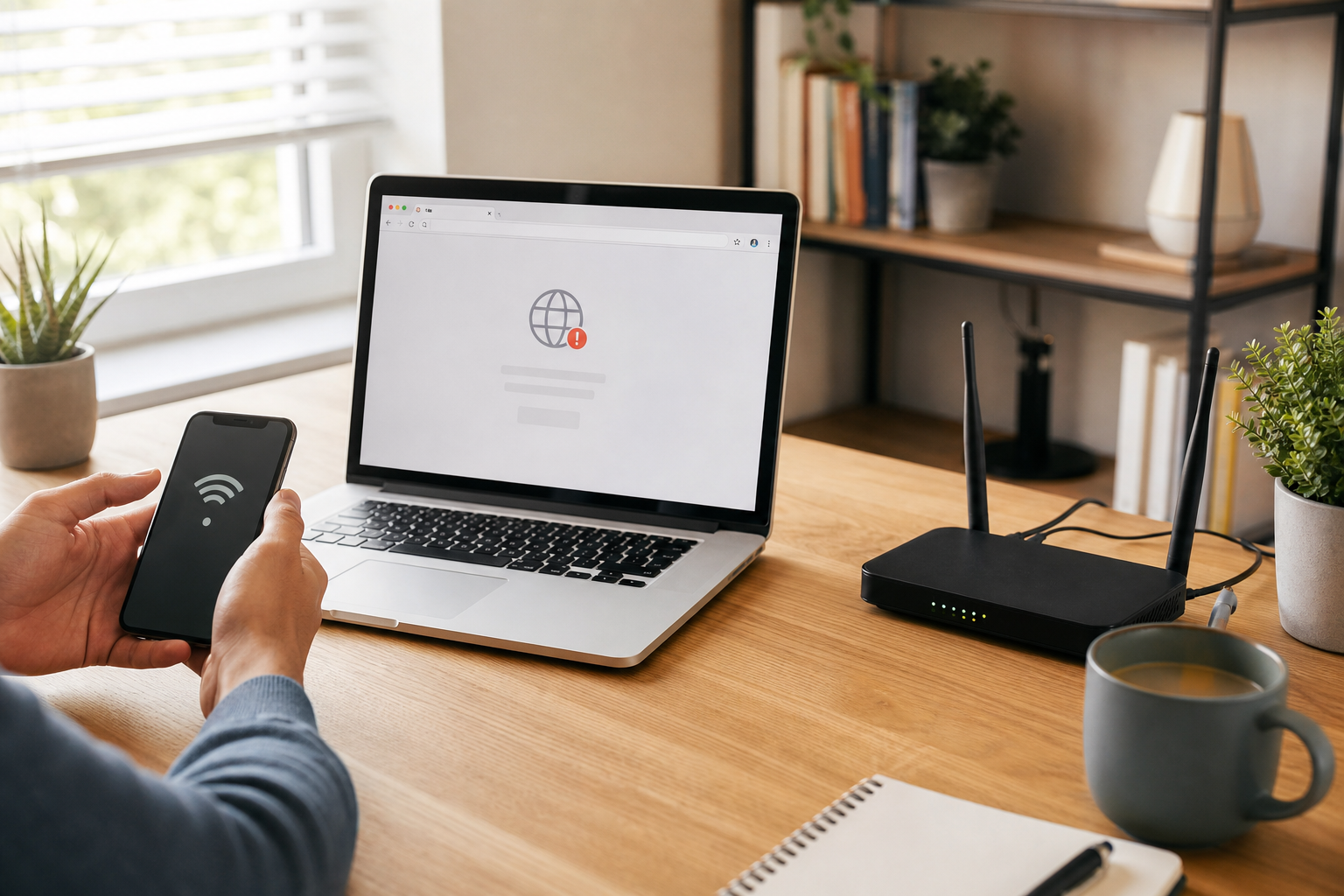
What “connected to Wi-Fi” means
When a computer reports that it is connected to Wi-Fi, it has successfully communicated with the wireless router or access point. That does not necessarily mean the router can reach the wider internet. Internet access also depends on the modem or other service equipment, your provider’s network, and the computer’s ability to use services such as DNS.
This distinction helps you avoid changing settings unnecessarily. A strong Wi-Fi signal only describes the connection between your device and the nearby wireless equipment. It does not confirm that the internet service is working.
Look for the pattern first
- The computer shows “Connected” or full Wi-Fi bars, but familiar websites do not load.
- Some websites work while others display a DNS or server error.
- Email, cloud storage, online games, or software updates cannot connect.
- Several devices on the same Wi-Fi network are offline.
- The computer works normally on a different network, such as a phone hotspot.
If only one computer is affected, the cause is more likely to be that computer, its software, or its network settings. If phones, televisions, and other computers have the same problem, the router, modem, service line, or internet provider is more likely to be involved.
Safe checks to try first
1. Test several familiar websites
Try two or three websites that you regularly use. A single site may be temporarily unavailable, so one failed page does not prove that your internet connection is down. If websites load but one application does not, the issue may be limited to that application, its account, or its service.
If a website asks you to sign in again, use the normal sign-in page and avoid entering a password into an unexpected pop-up. On some public or managed networks, a browser sign-in page must be completed before internet access is allowed.
2. Check another device
Test a phone or another computer connected to the same Wi-Fi network. If other devices work normally, focus on the affected computer. If all devices fail, check the network equipment and provider status before changing settings on each device.
A phone hotspot can provide a useful comparison, but it may use mobile data and could incur charges or data limits. Turn the hotspot off after testing.
3. Inspect the modem and router safely
Check that the modem, router, or combined gateway has power and that its indicator lights look normal for that model. A light labeled Internet, Online, WAN, or Service may change when the provider connection is unavailable. Light names and patterns vary, so the equipment manual or provider’s instructions are more reliable than a general rule.
Check that power and network cables are connected at both ends. Do not force a connector, repeatedly handle a damaged cable, or continue using an adapter that is cracked, frayed, unusually hot, or smells burned. If networking equipment has been exposed to liquid or shows signs of overheating, unplug it only if doing so is safe and arrange professional help.
4. Restart the network in an orderly way
If there are no warning signs, a normal restart can clear a temporary connection problem. Save open work first. Follow the modem or router manufacturer’s or provider’s restart instructions where available. For separate devices, this commonly means powering down the router, restarting the modem or service gateway, waiting for it to reconnect, and then powering the router back on. The reconnection process may take several minutes.
After the network equipment has restarted, restart the computer and test the connection again. If your provider supplied one combined modem-router unit, restart that unit according to its instructions.
Avoid pressing a small Reset button unless you know whether it performs a temporary restart or a factory reset. A factory reset can erase wireless names, passwords, parental controls, and provider-specific configuration.
5. Check the computer’s basic settings
Confirm that Airplane mode is off and Wi-Fi is enabled. If the computer lists the correct wireless network, disconnect from it and reconnect using the normal Wi-Fi password. This may resolve a temporary connection or authentication problem without changing advanced settings.
Temporarily disconnecting from a VPN, if you use one, can help show whether the VPN is involved. Do this only through the VPN application’s normal controls, and reconnect it after testing if you need it for work or privacy. Also check whether security software or a work-managed network policy is reporting a connection problem; do not disable protection broadly just to make a test work.
Windows and macOS include built-in network diagnostics. These tools may identify a disabled adapter or a basic configuration issue, but they cannot repair every router, provider, DNS, or account problem. Read the result carefully rather than accepting every suggested reset.
Understanding DNS errors
DNS, or the Domain Name System, translates a website name into the numerical address used to find that site. If DNS is unavailable, a browser may report that it cannot find the server even though the computer remains connected to the router.
A DNS message does not automatically mean that you should replace the DNS server settings. The cause could be a provider outage, a router problem, a VPN, security software, or a broader loss of internet service. Write down the exact error message and compare the result on another device before making advanced changes. If only one computer is affected, a technician can review its network configuration without relying on guesses.
When to stop troubleshooting
Contact your internet provider when the modem or gateway cannot establish an online connection, the provider reports an outage, or the service account appears inactive. Ask whether there is a known outage or a problem with the line or equipment. Keep the exact error message and the time the problem began available.
Seek technical help if the issue returns frequently, affects only one computer after basic checks, or began after a software, security, or network change. Do not open a modem or router, repair a power supply, or work around damaged wiring. Stop using equipment that is burning hot, smells like overheated plastic, has visible damage, or has been exposed to liquid because those conditions can create an electrical or fire hazard.
Reduce future connection trouble
Keep the router in a dry, open location with airflow around it. Avoid enclosing it in a cabinet or placing it beside heat-producing equipment. Label important cables so they are easier to identify, and store the Wi-Fi network name and password securely rather than posting them where visitors or passersby can read them.
Install operating system and router firmware updates through the manufacturer’s or provider’s normal tools. Keep a note of the provider’s support number and equipment model. If the problem occurs only in one room, it may be a coverage or interference issue rather than a complete outage. Moving the router to a more open, central location or using properly configured networking equipment may help.
When AME Computers can help
If your computer connects to Wi-Fi but cannot reach the internet, AME Computers can help separate a device problem from a router, configuration, or service issue. Bring the exact error message, the computer’s operating system, and a note about whether other devices are affected. Practical troubleshooting before advanced changes can help protect your network settings and reduce the chance of creating a second problem.