
Hardware & Gaming PCs
USB Devices Keep Disconnecting? Safe Checks Before Repair
Repeated USB dropouts can be caused by a cable, port, hub, power setting, device fault, or computer hardware. These careful checks can help narrow down the cause without risking your files or equipment.
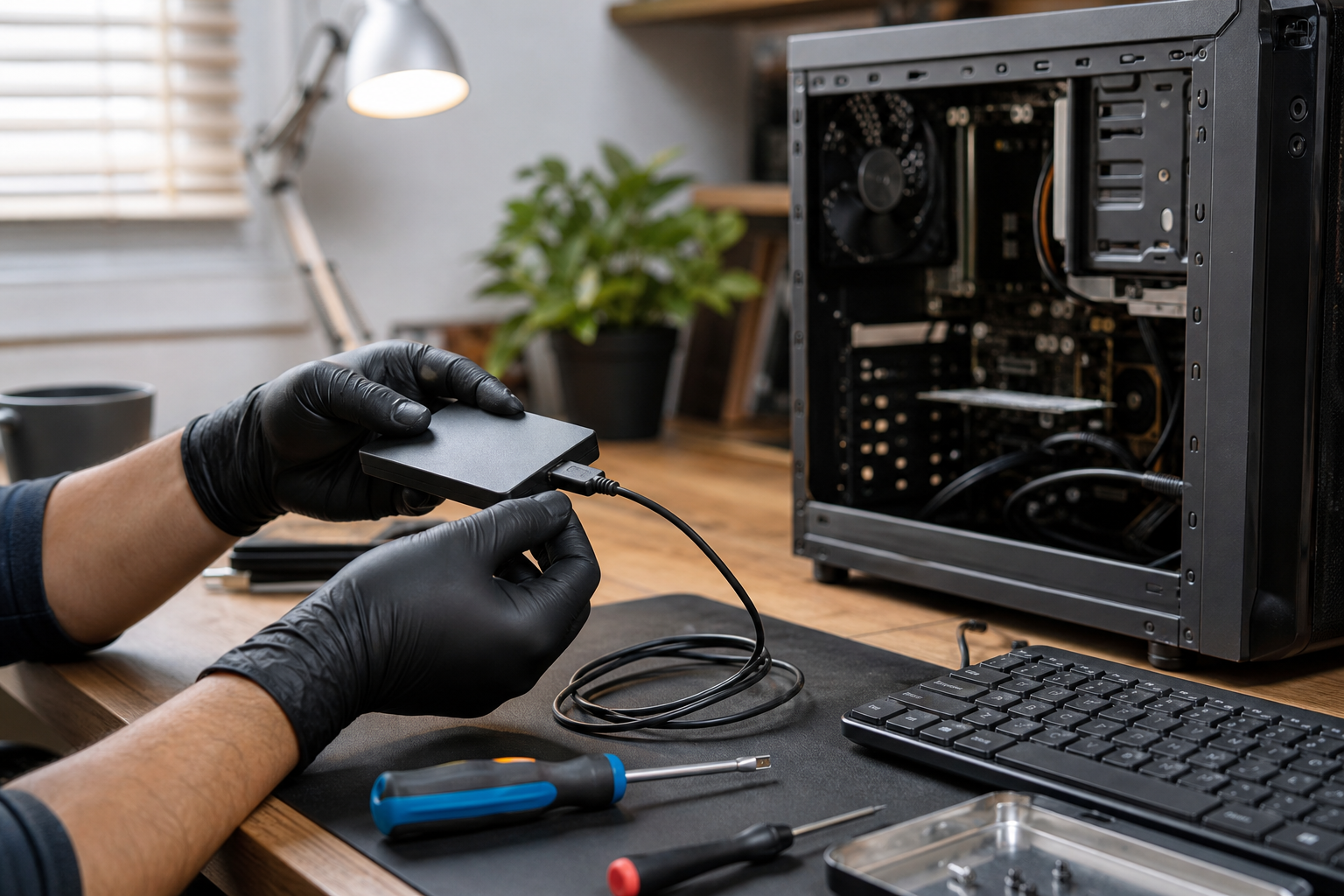
USB devices should usually work as soon as they are connected, so repeated disconnects can be especially frustrating. A mouse may freeze, a keyboard may stop responding, a printer may vanish, or an external drive may disappear from File Explorer. The computer is not always the cause.
Intermittent USB problems can involve a damaged cable, a loose or dirty port, an overloaded hub, a power-management setting, an outdated driver, or a failing accessory. A fault with the computer’s USB controller or motherboard is also possible. The safest approach is to compare one part of the setup at a time instead of repeatedly reconnecting an important or unreliable device.
What repeated USB disconnections can indicate
When a USB device disconnects, the computer temporarily loses communication with it. You may hear the device-removal sound, see a notification, or notice that the device disappears from an application. It may reconnect automatically, or it may remain unavailable until you unplug and reconnect it.
A single interruption could result from an accidental bump or a loose connection. Repeated interruptions suggest that something in the connection is unstable. The problem may follow the device, cable, port, hub, or computer. Identifying what changes the behavior is more useful than immediately making advanced system changes.
Common patterns and possible causes
- Only one device disconnects: The device, its cable, or its connector may be failing.
- Several devices fail on one port: That port could be loose, damaged, contaminated, or unable to provide reliable power.
- Devices work directly but fail through a hub: The hub may be overloaded, defective, or receiving insufficient power.
- The problem starts after the computer has been idle: A power-management setting may be suspending the connection, although other causes remain possible.
- A drive disconnects during file transfers: Treat the drive as unreliable until the cause is understood. Interrupted transfers can leave files incomplete or make access more difficult.
- The connection changes when the cable moves: The cable, connector, or port may have a physical connection problem.
Safe checks to try
1. Protect active work first
Save open documents before testing. If the affected device is an external drive, avoid moving, renaming, or copying large groups of files while it is repeatedly disconnecting. If important files are still accessible, copy them to a different, reliable location as soon as practical. Do not treat the unstable drive as the only copy.
If the drive disconnects during access, becomes unusually hot, makes unusual repeated noises, or is otherwise showing signs of failure, stop using it. Avoid repeatedly powering it on and off or running repair utilities before considering professional data-recovery advice.
2. Inspect the cable and connectors
Disconnect the device and examine the cable and connectors under normal lighting. Look for fraying, cracked plastic, bent metal, or a plug that feels unusually loose. Do not force a plug into a port, and do not insert pins, tools, or liquids into a connector.
Reconnect the device firmly without excessive pressure. If the problem appears when the cable is touched or repositioned, stop flexing it and try a known-good replacement cable that is suitable for the device. Some external drives, printers, and other accessories require a cable that supports both data and adequate power.
3. Try another USB port
Test the device in a different port on the same computer. On a desktop, a rear port connected directly to the motherboard may behave differently from a front-panel port or an extension. On a laptop, avoid a port that feels loose or has visible damage.
If one port works consistently while another does not, note that result. It can help a technician determine whether the issue is limited to a port or is affecting the computer more broadly.
Do not continue testing if the computer or accessory becomes hot, smells unusual, sparks, shows discoloration, or has visible electrical damage.
4. Temporarily remove hubs and adapters
If the device is connected through a USB hub, docking station, monitor, or adapter, connect it directly to the computer for a short comparison. A hub shares available power and communication between connected devices. A bus-powered hub may struggle when several devices are attached, especially equipment that draws more power, such as external drives, webcams, and phones.
If you use a powered hub, confirm that its intended power adapter is connected correctly. Do not substitute an unknown or incompatible power supply.
5. Compare with another device or computer
Try a simple device, such as a basic mouse or keyboard, in the same port. If possible, test the original device on another compatible computer. These comparisons help show where the problem follows:
- If the original device fails on multiple computers, the device or cable is a likely cause.
- If several devices fail on one computer but work elsewhere, the computer, its ports, drivers, or power settings may need attention.
- If problems occur only through one hub or dock, troubleshoot that accessory before changing the computer.
Use only compatible equipment for these comparisons, and avoid borrowing a power adapter unless its specifications are confirmed.
6. Restart and check official updates
A normal restart can clear a temporary USB controller or driver problem. After restarting, check Windows Update and the computer or accessory manufacturer’s official support page for relevant chipset, USB, firmware, or docking-station updates. Avoid random driver-download utilities and unverified troubleshooting software.
If the issue began after a system or driver update, record when it started, which devices are affected, and any error messages. Avoid changing several advanced power settings or registry entries at once, because doing so can make the original cause harder to identify.
When to stop using the equipment
Stop testing and arrange professional help if a USB port is physically loose, pushed inward, discolored, hot, or producing a burning smell. Stop immediately if liquid has reached the computer or accessory. Do not continue using equipment with exposed wiring, damaged connectors, or signs of electrical arcing.
For an external drive that clicks, repeatedly disappears during file access, becomes unusually hot, or causes the computer to hang, disconnect it and avoid further experimentation. If the files matter, data-recovery decisions should come before software repair attempts.
Preventing future USB problems
Use cables in good condition, avoid pulling devices by their cords, and support heavy adapters so they do not strain laptop ports. Disconnect external drives safely when the operating system provides an eject option, and maintain at least one additional backup of important files.
For several power-hungry devices, use a reputable powered hub or docking station that is suitable for the equipment. Keep the operating system and manufacturer-provided drivers reasonably current, and back up important data before major system changes. If one port repeatedly fails while others remain reliable, stop using that port rather than forcing it into service.
When AME Computers can help
If USB devices continue disconnecting after these basic comparisons, AME Computers can help determine whether the cause is a cable, accessory, software setting, damaged port, power issue, or deeper hardware fault. Bring the affected device, cable, and any relevant hub, dock, or adapter when possible so the complete setup can be tested.