
Laptop & Charging
Laptop Battery Drains Quickly? Safe Checks Before Service
Rapid battery drain can be caused by normal heavy use, aging battery capacity, power settings, charging equipment, or a hardware fault. These safe checks can help narrow down the cause without opening the laptop.
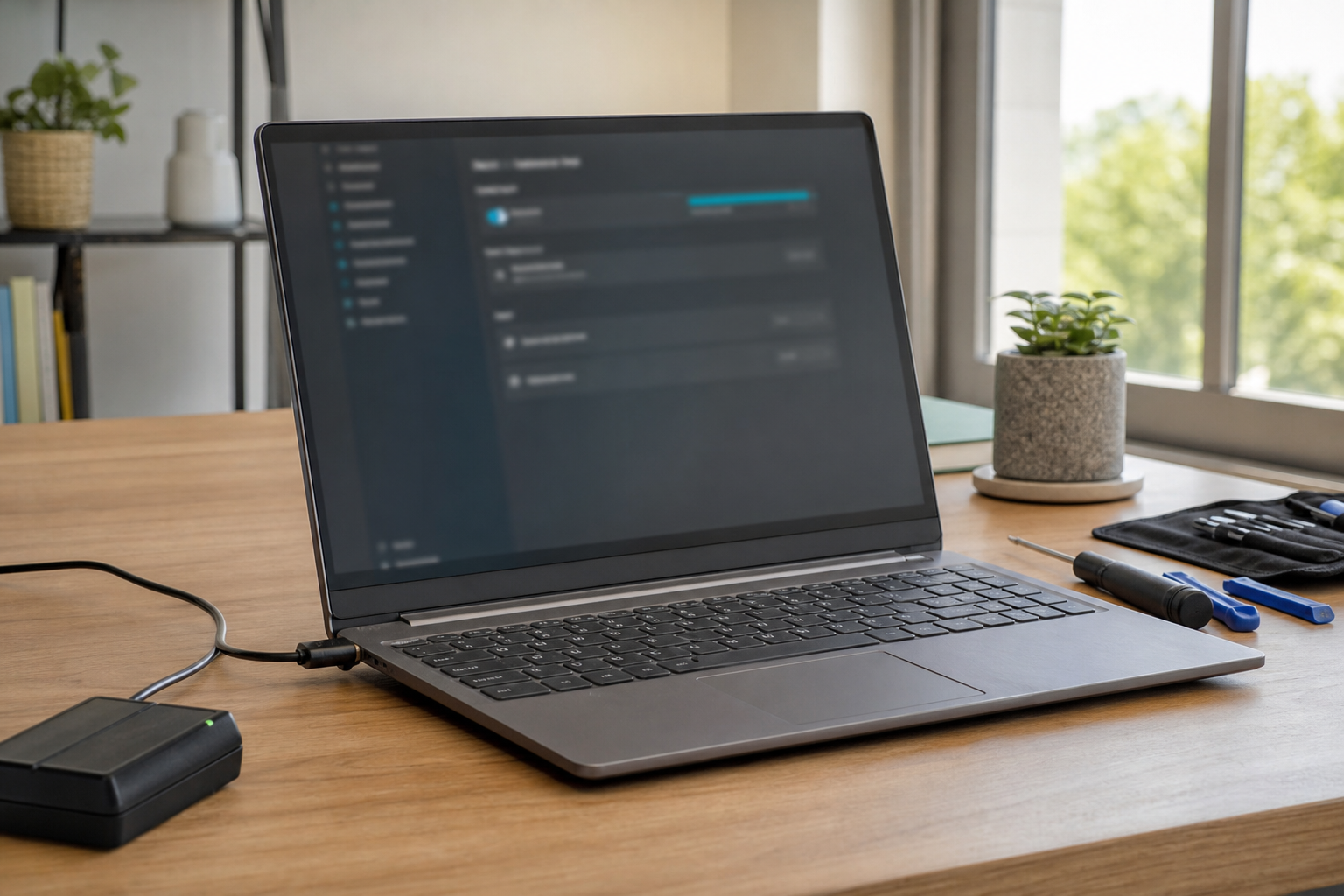
A laptop battery that once lasted several hours but now drops quickly can be frustrating, especially when the change seems sudden. Fast drain does not always mean the battery has failed. A demanding application, bright display, background activity, unsuitable charger, charging fault, or normal battery aging may be responsible.
The safest approach is to look for simple patterns before changing hardware or opening the computer. Unless the manufacturer specifically designed the battery for safe user replacement, do not remove an internal battery yourself. Lithium-ion batteries can be damaged by punctures, pressure, heat, or incorrect handling.
What rapid battery drain can indicate
Laptop batteries naturally lose capacity as they age. The computer may still show 100 percent after charging, but that percentage represents less stored energy than it did when the battery was new. Heat, frequent deep discharges, and extended periods at high charge levels can contribute to wear, although battery life also varies with the laptop’s design and usage.
Power use can also rise without a battery fault. Video calls, games, photo or video editing, high-resolution streaming, large downloads, external displays, and many active browser tabs may all reduce runtime. A program running in the background can continue using the processor, graphics hardware, storage, or network even when its window is not visible.
Patterns worth noting
- The battery percentage falls quickly during light tasks such as reading or writing.
- The laptop lasts much longer while sleeping or shut down than while it is being used.
- The percentage drops in large jumps instead of decreasing gradually.
- The computer reports that a battery is present but does not charge normally.
- The laptop works normally on its charger but shuts down soon after the charger is removed.
- The computer becomes unusually warm during light use, or its fan runs more than expected.
- The reported percentage changes noticeably after a restart.
Safe checks you can perform
1. Compare light and demanding use
With the charger disconnected, use the laptop for a short period for a simple activity, such as reading a document. Later, compare that behavior with a more demanding task, such as a video call or high-resolution video playback. You do not need to drain the battery completely or repeat the test if the laptop becomes very hot. A substantial difference between light and heavy use may point to normal power demand rather than a battery defect.
Record what was running, whether the display was bright, and whether the laptop was connected to accessories. These details can help a technician assess the problem without requiring repeated testing.
2. Review applications and energy use
Windows and macOS include tools that show applications using significant processor or energy resources. Close programs you recognize but do not need, particularly video editors, games, game launchers, cloud-sync tools, and unnecessary browser tabs. If battery life improves after closing one application, check that program for updates or settings that reduce background activity.
Do not end unfamiliar system processes at random. Some are required for Windows or macOS to work correctly, and stopping them can cause instability or loss of unsaved work. If an unfamiliar application appears to be using substantial resources, search for its publisher or ask a technician before removing it.
3. Review brightness and power settings
Lowering screen brightness is often a simple way to extend runtime. Review the laptop’s battery or power settings and make sure sleep is enabled after a reasonable period of inactivity. If the computer is left in a bag, use sleep or shut down as appropriate rather than leaving a demanding application running.
Operating-system updates and manufacturer updates may correct power-management problems, but install them through the computer’s normal settings or the manufacturer’s official support tools. Save important work first, and avoid downloading drivers or battery utilities from unknown websites.
4. Check battery health information
Windows can create a built-in battery report that compares the original design capacity with the current full-charge capacity. On a Mac, battery health information is available in System Settings under Battery. These readings are useful clues, but they are not a complete diagnosis. A battery can show an apparently acceptable condition and still perform poorly under a particular load, while reported capacity can also vary with the computer’s measurement and calibration.
Do not repeatedly run the battery down to zero to “calibrate” it. Modern laptops generally manage battery measurements automatically, and deep discharges can add unnecessary wear. Follow the manufacturer’s guidance if it provides a specific diagnostic procedure.
5. Check the charger and connection
Use the charger recommended for the laptop. A phone charger or low-wattage USB-C adapter may fit the port but may not provide enough power, particularly while the computer is being used. Some laptops may charge slowly, stop charging, or continue losing battery power when the adapter cannot supply sufficient wattage.
With the charger disconnected, inspect the cable and connector for looseness, bent parts, fraying, discoloration, or heat damage. Try a different wall outlet if the charger appears not to work. Do not force a connector into a port or continue using a cable that becomes unusually hot. If charging works only when the cable is held at a certain angle, the cable, charging port, or an internal connection may need service.
Warning signs: stop using the laptop
Stop using and charging the laptop if its case is bulging, the trackpad or keyboard is being pushed upward, the battery area is swelling, or the device has a chemical smell. A swollen lithium-ion battery can become hazardous if punctured, compressed, or overheated.
Do not press the case flat, puncture the battery, remove it by force, place it in household trash, or continue testing it. If it is safe to do so, disconnect the charger and leave the device powered off. Keep it away from heat and avoid handling the damaged area. Contact the manufacturer, a qualified repair provider, or an appropriate battery-recycling service for handling instructions. If the laptop produces smoke, flames, or intense heat, move away and contact emergency services when appropriate rather than attempting to manage the battery yourself.
Also stop using the computer and seek advice if it has a burning smell, shows signs of liquid damage, or becomes extremely hot during ordinary use. Do not continue charging it just to collect more test results.
Reducing future battery wear
Keep the vents clear and use the laptop on a hard, stable surface rather than a bed or soft blanket. Avoid leaving it in a hot car or in freezing conditions. If the computer normally stays plugged in, a battery-protection feature that limits the maximum charge may be available; the name and behavior vary by manufacturer.
If the laptop will be unused for weeks, follow the manufacturer’s storage guidance rather than leaving it completely depleted. Avoid third-party “battery optimizer” programs that promise dramatic improvements or request unnecessary access to personal information.
When professional service makes sense
Arrange professional service if the battery still drains quickly after these checks, the charging port is loose, the battery report indicates substantial capacity loss, the laptop shuts down unexpectedly, or charging behavior changes when the cable moves. A technician can assess the battery, charger, charging circuit, temperature readings, and software power use without relying on guesswork.
If your laptop shows swelling, overheating, liquid damage, smoke, or another safety warning, prioritize safe shutdown and battery handling over continued troubleshooting.