
Storage & Backups
External Drive Not Detected? Safe Checks Before Data Recovery
An external drive that disappears may have a simple cable or port problem—or a fault that puts your files at risk. Learn cautious checks, warning signs, and when to stop troubleshooting.
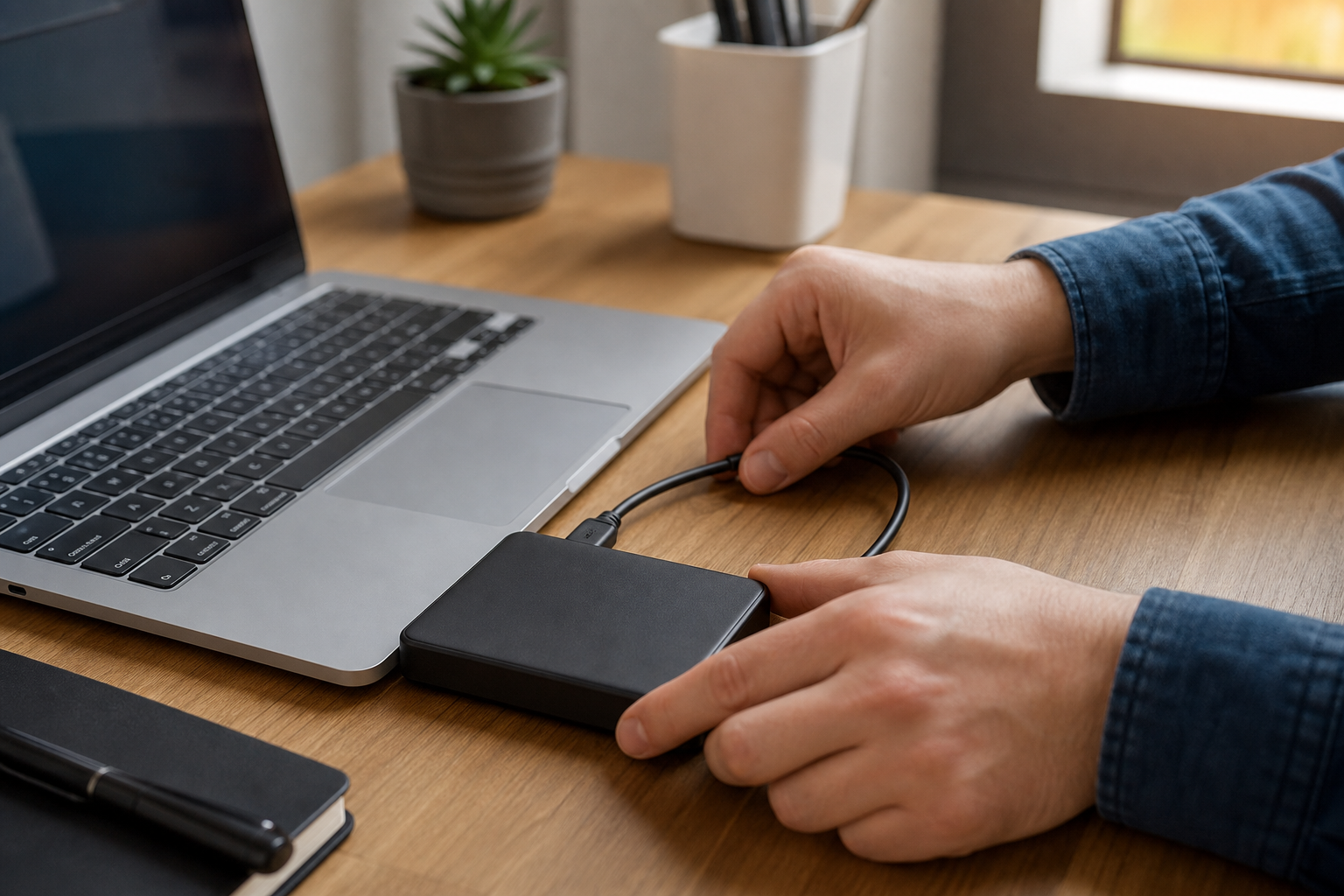
When an external hard drive or USB flash drive does not appear on your computer, the cause may be a loose cable, a faulty port, a power problem, or an issue with the drive itself. The device may also be detected by the computer but fail to appear in File Explorer or Finder. These situations can look similar, but they do not all call for the same response.
If the drive contains the only copy of important files, be cautious before trying repair tools or repeatedly reconnecting it. Some actions can change information on the drive and may make later data recovery more difficult. Start with observations and low-risk connection checks, then stop if the symptoms suggest physical failure.
What “not detected” can mean
A drive may be missing from the normal file-browsing window while still appearing in the operating system’s storage utility. It may show with the wrong name, appear empty, disconnect repeatedly, or display a message asking you to format it.
- No light, sound, or response: The cable, USB port, power adapter, enclosure, or drive electronics may be involved.
- The drive appears but will not open: The file system, partition information, permissions, or drive health may be affected.
- The computer asks you to format the drive: Do not format it if you need the files. Formatting can overwrite information that may be needed for recovery.
- The drive appears and disappears: An unstable connection, insufficient power, overheating, or a failing device may be responsible.
- Clicking, grinding, scraping, or repeated spin-up sounds: These are warning signs for a mechanical hard disk. USB flash drives and solid-state drives do not have spinning platters, so unusual behavior from those devices may have a different cause.
Safe checks to try first
1. Consider how valuable the data is
Before troubleshooting, determine whether the files exist in another location. If the drive contains replaceable downloads, basic connection checks are generally reasonable. If it holds family photos, business records, financial documents, or the only copy of important work, use a more conservative approach and consider professional data-recovery advice before running repair software.
2. Inspect the connection
Close applications that may be using the drive, then disconnect and reconnect the cable firmly. Look for a frayed cable, bent connector, or loose connection at the drive enclosure. If the drive has a separate power adapter, make sure it is connected securely to both the enclosure and a suitable wall outlet.
Try another USB port on the computer, preferably a port directly on the computer rather than a hub or docking station. If the drive works from one port but not another, the original port, hub, or dock may be the problem.
Use a replacement cable only when you know it is compatible with the drive’s connection. Do not force a connector or substitute an uncertain power adapter. An incorrect adapter can damage some external enclosures and drives.
3. Test it on another computer
A second computer can help distinguish a computer-side problem from a drive-side problem. If the drive opens normally elsewhere, copy important files to another location promptly. Temporary success does not prove that the drive is healthy; an unreliable device can work intermittently.
If the drive is not detected on more than one known-working computer, the problem is more likely to involve the cable, enclosure, power supply, or storage device. Avoid assuming that the files are gone, but do not keep reconnecting the drive indefinitely.
4. Check whether the operating system sees it
On Windows, right-click the Start button and open Disk Management. Look for a disk with a capacity that roughly matches the external device. If it appears there but not in File Explorer, note what Windows reports.
On a Mac, open Disk Utility from Applications > Utilities. Check whether the physical drive appears in the sidebar, even if its volume is not mounted in Finder.
Do not initialize, erase, format, delete partitions, or change other disk settings when the drive contains important files and you are unsure what an option will do. A prompt to initialize or format does not mean the drive is safe to reformat; it may indicate that the computer cannot currently read the existing partition or file system.
5. Note a missing drive letter or mount status
Sometimes a drive is detected but does not appear in the usual file-browsing window because Windows has not assigned it a drive letter, or because macOS has not mounted the volume. This can be a relatively simple configuration issue, but record the information shown by the operating system before changing settings.
If the files are important, a technician can review the drive’s status without treating a missing drive letter or mount point as permission to make broader changes. Avoid choosing options labeled repair, scan, or fix until you understand whether they will write changes to the device.
Warning signs: when to stop
Disconnect the drive and stop troubleshooting if it makes repeated clicking, grinding, scraping, or unusual beeping sounds. Also stop if it becomes unusually hot, smells burned, shows visible damage, or repeatedly connects and disconnects. Do not shake, tap, freeze, open, or continue power-cycling a drive in an attempt to make it work.
If the device has been exposed to liquid or suffered a drop, avoid reconnecting it for repeated tests. Power can cause additional damage to wet or physically damaged electronics. Keep the device in its current condition and seek advice from a qualified technician or data-recovery provider.
Be careful with repair and recovery software
Disk-repair tools can be useful when a device is backed up and the goal is to restore ordinary operation. However, some tools modify file-system structures or other information on the drive. That may reduce recovery options when files are missing, the drive is unstable, or the storage hardware is failing.
Do not format the drive because Windows or macOS recommends it. Do not save recovered files back to the same problem drive, and do not install software onto it if doing so could overwrite data. When the files are irreplaceable, getting advice before making changes is usually safer than trying several automated fixes.
Reduce the chance of future data loss
Keep at least one additional copy of important files on separate storage or a reputable backup service. For especially valuable information, more than one backup location offers better protection from device failure, theft, accidental deletion, and other incidents. Check backups periodically so you know the files can be opened.
Use the operating system’s eject function before unplugging external storage. Protect portable drives from drops, moisture, excessive heat, and pressure on the connector. Slow performance, unexpected disconnections, or new noises are reasons to copy important files and investigate—not signs to wait for total failure.
When professional help makes sense
Professional assistance is a sensible next step when the drive contains important files, is not detected by multiple computers, makes unusual sounds, shows signs of physical damage, or keeps disconnecting. A qualified technician can help distinguish a cable or enclosure fault from a storage-device problem and recommend the least risky next step.
AME Computers can assess an external drive that is not being recognized and discuss options for protecting or recovering its data. If the files matter, stop using the drive before formatting it or running repeated repair scans.