
Windows & Performance
Computer Freezes or Stops Responding? Safe Checks Before Repair
A frozen computer may have a stuck application, excessive workload, heat problem, driver issue, or hardware fault. Learn what you can safely check and when continued use could put your files at risk.
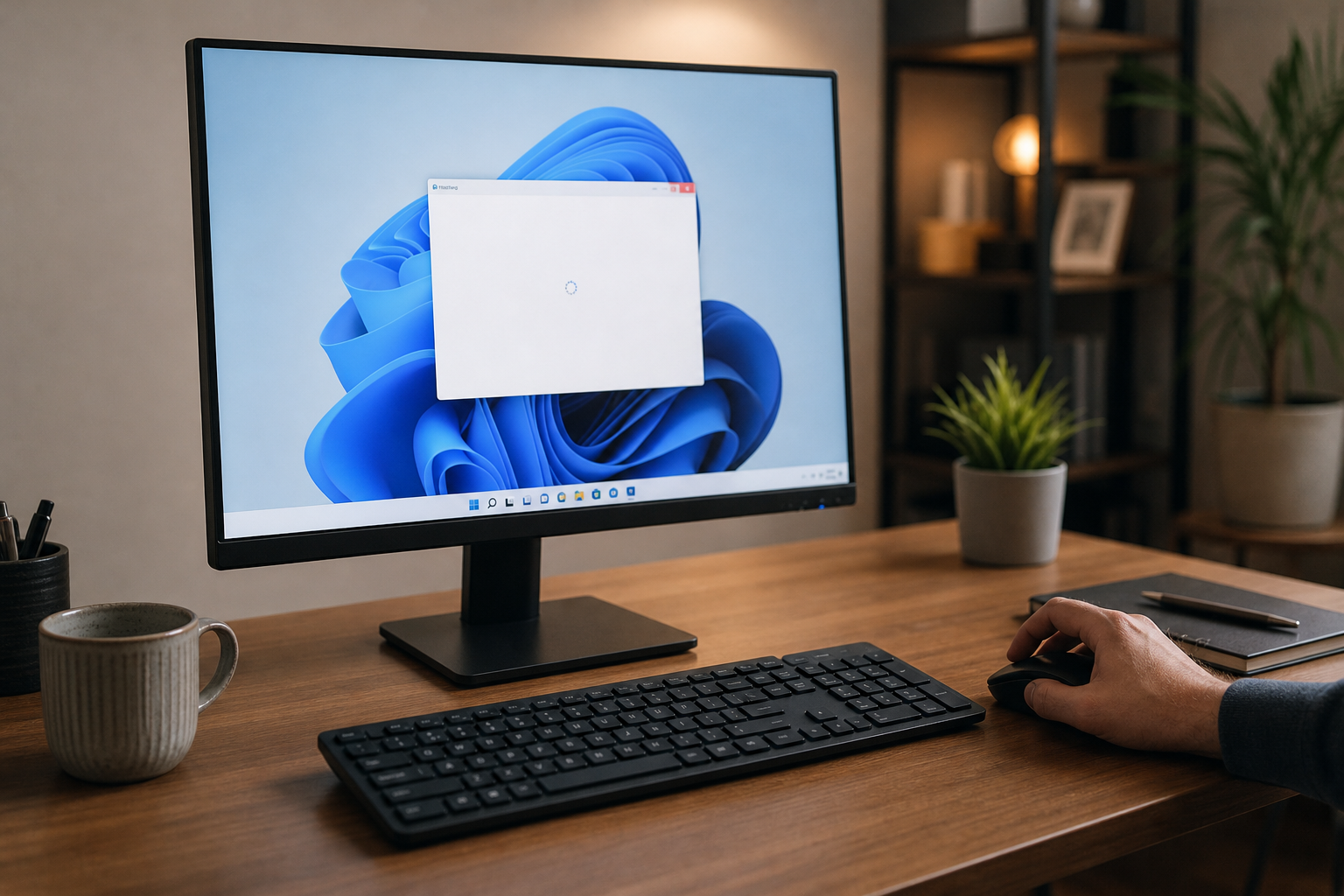
What a computer freeze can mean
A computer freeze occurs when the system stops responding normally. The pointer may stop moving, windows may not open, or keyboard commands may appear ineffective. Sometimes only one application is stuck; in other cases, Windows or another operating system has stopped processing input.
One brief freeze does not necessarily mean the computer is failing. An application may be completing a demanding task, an update may be running, or the system may be temporarily short on available memory. Repeated freezes, especially when they are becoming more frequent, deserve attention. Possible causes include overloaded software, overheating, storage problems, defective memory, graphics or device-driver issues, and unstable power.
Notice the pattern
What happens before and during the freeze can help distinguish an application problem from a broader system or hardware issue:
- Only one application stops responding: The rest of the desktop still works. The program, one of its files, or an add-on may be involved.
- The entire desktop becomes unresponsive: Windows may be overloaded, a driver may have failed, or hardware may be having trouble.
- Freezes occur during demanding tasks: Gaming, video editing, large transfers, or many open applications can expose heat, memory, graphics, or power limitations.
- Freezes happen while Windows starts: Startup software, an update, damaged system files, or storage trouble may be involved.
- The computer freezes and then restarts: This may indicate a system crash, overheating, power interruption, or hardware fault rather than an ordinary application hang.
- Freezes are accompanied by unusual drive sounds, a burning smell, liquid damage, or extreme heat: Stop using the computer and arrange professional service.
Safe checks to try first
1. Wait briefly before interrupting it
If the computer was opening a large file, applying an update, or performing another demanding operation, wait a few minutes. Repeatedly clicking or pressing keys will not make a busy program finish faster and can make the situation harder to assess.
If the computer becomes responsive and there are no signs of hardware trouble, save important work. A backup may be sensible, but do not keep using a computer that is producing unusual drive noises, showing file errors, or becoming dangerously hot just to complete a backup. In those situations, preserving the storage device and data should take priority.
2. Check whether Windows or only one program is stuck
Try moving the pointer, pressing Ctrl+Alt+Delete, or using Alt+Tab to switch windows. If the Windows security screen appears, the operating system is still responding. You may be able to open Task Manager, select the program marked as not responding, and choose End task. Unsaved work in that program may be lost, so use this only after giving it reasonable time to recover.
If the display is visible but appears frozen during a graphics-related task, Windows key + Ctrl + Shift + B may ask Windows to restart the graphics driver. The screen can briefly go dark, and a beep may be audible. This shortcut does not repair a failing graphics card; it is simply a safe test for a temporary graphics-driver problem.
3. Look for a temporary resource overload
After the system recovers, open Task Manager and review the Processes and Performance tabs. Look for an application consistently using nearly all of the CPU, memory, or disk activity. A browser with many tabs, backup software, a security scan, a cloud-sync tool, or video software can consume substantial resources.
Close programs normally, remove unnecessary browser tabs, and restart the computer. Do not randomly disable Windows services, delete unfamiliar files, or end processes solely because their names look unusual. If one legitimate application repeatedly causes the freeze, update it through a trusted source, review its settings, or contact the software maker.
4. Consider recent changes
Think about whether the problem began after a Windows update, driver change, application installation, new peripheral, memory upgrade, or security-software change. Disconnect nonessential USB devices and test again. If the issue began immediately after a software or driver change, the manufacturer’s normal uninstall or rollback option may be appropriate.
Use Windows Update, the computer manufacturer, or the device manufacturer for drivers. Avoid driver-download sites that bundle unwanted software or make unsupported claims about improving performance.
5. Check ventilation without opening the computer
Make sure air vents are not blocked by a wall, blanket, carpet, or accumulated dust. Use a laptop on a hard, flat surface rather than on bedding or upholstery. A desktop should have reasonable space around its vents.
With the computer powered off, you can gently clean accessible exterior vents. Do not open a laptop, desktop power supply, or other component unless you are trained to do so. Internal cleaning, fan inspection, and thermal repairs are safer for a qualified technician, particularly if the computer has a sealed design or shows signs of liquid damage.
When to stop troubleshooting
Stop using the computer and seek professional help if it repeatedly freezes with clicking, grinding, or other unusual drive sounds; produces a burning smell; becomes unusually hot; shows liquid damage; or shuts down unexpectedly. A failing storage device can deteriorate with continued use, and repeated restarts may make data recovery more difficult.
Also stop if the computer cannot remain on long enough to protect important files, freezes before Windows loads, or begins showing file errors, missing folders, or corrupted documents. Do not repeatedly run repair utilities, format the drive, reinstall Windows, or open the device before considering whether the files need to be preserved. If the data is important, minimize use and ask about a data-preservation plan before further testing.
If the computer is completely unresponsive and there is no sign of smoke, burning, liquid, or dangerous heat, a forced shutdown may eventually be necessary. Use the power button only as a last resort, because unsaved work can be lost and abrupt power loss can contribute to file corruption. Afterward, avoid repeatedly cycling the power if the same problem returns.
Ways to reduce future freezes
Keep Windows, device drivers, and regularly used applications updated through trusted sources. Maintain reasonable free storage space, remove software you no longer use, and avoid running workloads that exceed the computer’s capabilities. Keep vents clear and use a reliable backup system for documents, photos, and other irreplaceable files. A backup helps protect data, but it does not prevent a hardware failure.
Record the date of each freeze, what you were doing, the applications in use, any error message, and whether a normal restart temporarily helped. This information can save time during diagnosis. If the same freeze returns after a clean restart, investigating the underlying cause is more useful than repeatedly forcing the computer off.
Need help identifying the cause?
AME Computers can evaluate recurring freezes, review software and hardware symptoms, and help determine whether your files should be protected before further testing. Contact AME Computers to arrange a computer repair evaluation in Bellevue, Nebraska, especially if the problem is frequent or accompanied by warning signs.