
Windows & Performance
Computer Fan Running Loud? Safe Checks Before Repair
A loud fan can be a normal response to heavy activity, but persistent noise may point to blocked airflow, excess heat, or a failing fan. Learn what you can safely check before arranging service.
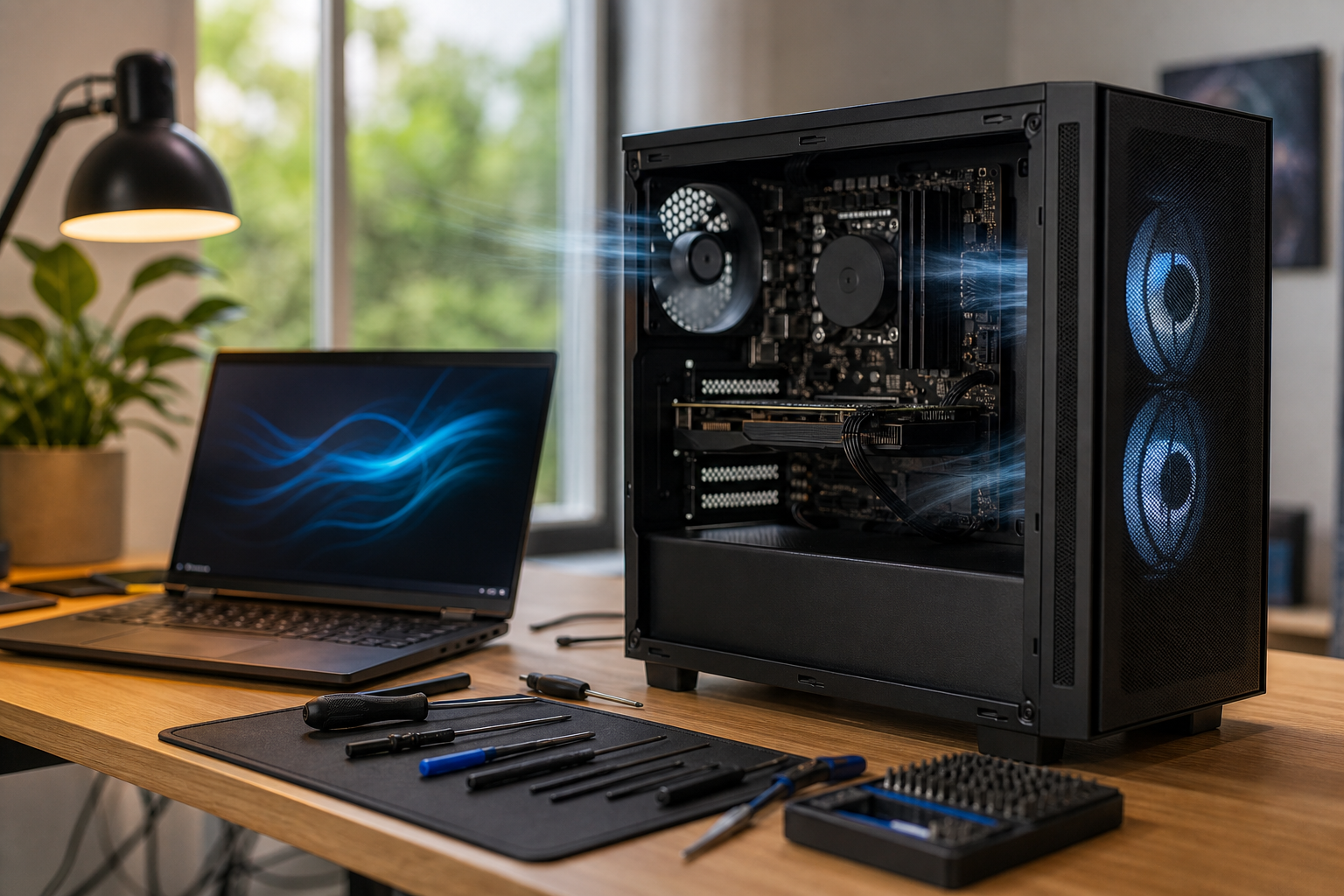
A computer fan is designed to move heat away from the processor and other components. It is normal for the fan to become louder briefly when you open a demanding program, install updates, play a game, join a video call, or perform another resource-intensive task. A fan that stays loud during light use, becomes unusually rough, or repeatedly speeds up and slows down deserves attention.
Noise alone cannot identify the exact cause. The computer may be working hard because of an application, struggling with restricted airflow, responding to a warm room, or experiencing a mechanical problem with the fan. Safe observation can help narrow down the possibilities without opening the machine or experimenting with delicate hardware.
What a loud fan can mean
The most common explanation is increased workload. Web browsers with many tabs, video calls, photo or video editing, games, security scans, software updates, and background synchronization can all increase processor activity. The fan may run faster to keep internal temperatures within the system’s normal operating range.
Airflow problems are another frequent cause. Dust can collect around vents and filters, while a laptop placed on a blanket, cushion, or soft furniture may have its intake blocked. A desktop pushed tightly against a wall or enclosed inside a cabinet may also have difficulty moving warm air away from the case.
A steady rattling, grinding, ticking, or scraping sound can indicate that the fan is worn, loose, or obstructed. The computer may continue working for a while, but continued use can increase the risk of overheating if the fan stops or spins inconsistently.
Patterns and warning signs to notice
- The fan becomes loud even when you are only reading email or viewing a simple webpage.
- The computer feels unusually hot near its vents, keyboard, palm rest, or case.
- Programs respond slowly while the fan runs at high speed.
- The fan repeatedly surges from quiet to loud without an obvious change in what you are doing.
- You hear a new rattling, grinding, buzzing, or clicking sound.
- The computer freezes, restarts, or shuts down after running for a while.
Note when the noise begins and what was running at the time. A fan that becomes loud during a game but quiet afterward has a different pattern from one that runs continuously at the Windows desktop.
Safe checks you can perform
1. Check whether a program is using the computer heavily
In Windows, press Ctrl + Shift + Esc to open Task Manager. On the Processes tab, review the CPU column and look for an application using an unusually large share of processing power. You can also check the Memory and Disk columns for activity that coincides with the noise.
Do not end unfamiliar processes simply because they use resources. Some are Windows components, security tools, or software performing an important task. If a familiar program is busy, save your work and allow its task to finish. If the same application repeatedly causes heavy activity when you are not using it, check for updates or consult the software maker’s support information.
2. Restart and observe the pattern
Save your work and restart the computer normally. A restart can clear a stuck application and provide a useful comparison, although it may not resolve an underlying cooling or hardware problem. After signing in, wait a few minutes before opening several programs. If the fan is quiet at first and becomes loud after launching one particular application, that detail can help identify the cause.
3. Improve airflow
Move a laptop to a hard, flat surface so its vents are not covered. Keep desktop vents clear of walls, papers, and other objects. Make sure the room is not unusually hot, and avoid using the computer inside a closed bag or container.
You may gently remove loose dust from accessible exterior vents using air intended for electronics, following the product directions and keeping the can upright. Do not insert objects into vents, force a fan to spin, or disassemble the computer unless you are trained to work on that model. Blowing dust deeper into a laptop can make the problem worse, and internal cleaning may require model-specific procedures.
4. Install normal system and software updates
Operating system and application updates can correct bugs that cause excessive processor activity. Use Windows Update, the computer manufacturer’s official support tools, and the application’s built-in updater where appropriate. Avoid “driver fixer” or “PC cleaner” advertisements that make dramatic promises or request unnecessary access. Do not install a utility solely because it claims to display a temperature or repair a fan.
When to stop using the computer
Stop using the device and disconnect its charger or power source if you notice a burning or electrical smell, smoke, melted plastic, visible sparks, or liquid damage, provided doing so is safe. Do not touch exposed wiring or attempt to investigate the inside.
If a laptop battery is swollen or pushing the case apart, power the device down if possible, unplug the charger, and do not press on the battery, close the case forcefully, or attempt to remove it. Keep the device away from heat and arrange professional guidance. A damaged battery requires careful handling.
Also stop using the computer if a fan makes grinding or scraping noises, if the device becomes too hot to handle comfortably, or if it repeatedly shuts down or restarts. Do not keep running a failing machine in the hope that the fan will correct itself. If important files are not backed up, avoid unnecessary use and seek advice before opening the case or performing demanding tests.
Reducing recurring fan noise
Keep vents clear, use laptops on hard surfaces, and give desktops reasonable space around their intake and exhaust areas. Review programs that launch at startup and remove software you no longer need through normal Windows settings. Keep backups of important documents so a heat-related failure does not become a data crisis.
For a desktop, internal cleaning or fan replacement may eventually be appropriate, but the correct procedure depends on the case, cooling system, and components. Laptop cooling systems are often more compact and difficult to service safely. Unusual noise, persistent heat, or repeated performance problems are good reasons to have the system inspected rather than guessing at replacement parts.
When professional diagnosis makes sense
If the fan remains loud after safe airflow and software checks, the cause may be a blocked heatsink, failing fan, temperature-sensor issue, unwanted background activity, or another hardware problem. A repair technician can inspect the cooling system and test the computer without requiring you to take unnecessary risks. Bring along details about when the noise occurs, any recent updates or software changes, and whether the computer has been moved, dropped, or exposed to liquid.
AME Computers can help diagnose persistent fan noise and related heat or performance symptoms. Contact the repair team for guidance before a cooling problem causes additional trouble.