
Data Recovery
Clicking Hard Drive? Safe Steps to Protect Your Files
Clicking, grinding, or repeated ticking may indicate a failing hard disk drive. Learn how to identify the likely source, protect important data, and recognize when further use could make recovery harder.
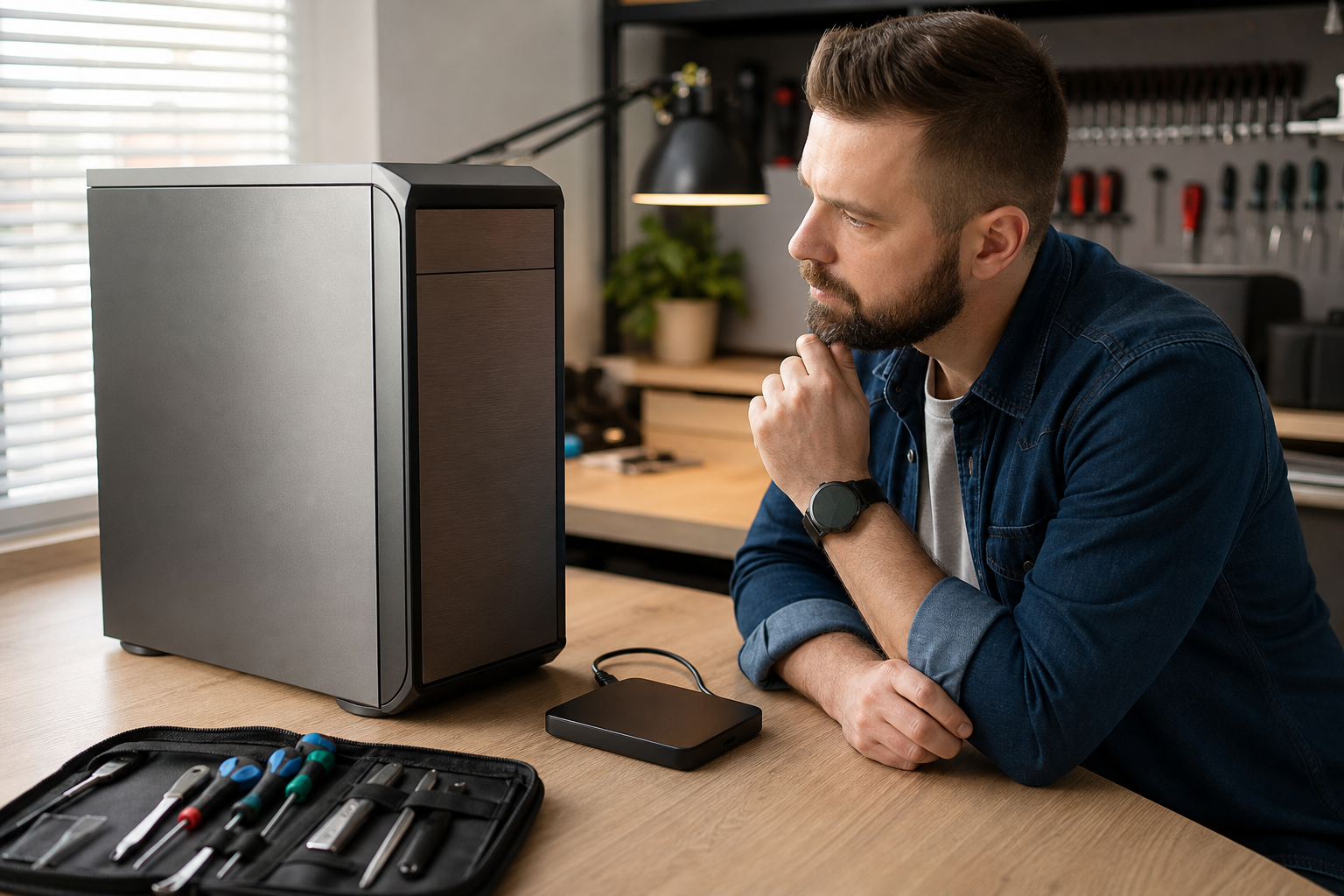
A clicking, ticking, chirping, or grinding sound from a computer deserves attention, particularly if the computer contains a traditional hard disk drive (HDD). Repeated mechanical noise can indicate that the drive is having difficulty reading data. Continued use may place additional demands on a damaged drive and could make important files harder to recover.
Not every unusual sound comes from storage. A fan, loose case panel, optical drive, speaker, power component, or external accessory can also make noise. Even so, a repeated clicking pattern that begins during startup or when files are opened should be treated as a possible storage problem until the source is identified.
What clicking or grinding may mean
Traditional hard disk drives use spinning platters and moving read/write heads. A repeated click may occur when the drive is unable to read or locate data and repeatedly retries the operation. Grinding or scraping can indicate more serious mechanical damage.
Solid-state drives (SSDs) have no spinning platters or moving read/write heads, so they normally do not produce mechanical clicking. If a computer with an SSD makes a clicking sound, the source may instead be a fan, optical drive, loose component, speaker, or another connected device. SSDs can still fail, but their symptoms are more often freezes, missing files, error messages, or failure to start.
Signs that storage may be failing
- Clicking, ticking, chirping, or grinding that repeats
- Files taking much longer than usual to open, save, or copy
- Freezes when launching programs or browsing folders
- “Disk read error,” “SMART failure,” or similar warnings
- Missing files, damaged folders, or files that will not open
- Windows or another operating system taking unusually long to start
- An internal or external drive appearing and disappearing
A single brief sound during startup does not prove that a drive is failing. The timing, repetition, and location matter. A technician may need to distinguish a storage problem from fan noise or another hardware fault.
Safe checks you can make
Without opening the computer, note when the sound occurs. Does it start immediately at power-on, happen only when opening files, or continue while the computer is idle? If the sound changes when the fan speeds up, the fan or airflow system may be involved. If it occurs when the computer accesses a particular folder or application, storage becomes more suspicious.
Listen from outside the case and identify whether the sound is coming from the computer, an external drive, an optical disc, or a nearby device. Do not remove covers or touch internal components while the computer is powered. If the sound appears to come from an external drive, shut the computer down normally if possible before disconnecting it. Avoid repeatedly reconnecting a noisy drive merely to test whether it works.
If the computer is operating normally and there are no unusual sounds, make sure your existing backups are current. However, if the drive is already clicking, freezing, disappearing, or showing read errors, do not begin a large backup or repeatedly drag folders between locations without considering the risk. Extensive copying can place additional read demand on a struggling drive. A data-recovery professional can assess the situation and, when appropriate, use a controlled approach to copy or image the drive.
Do not open a hard drive, remove its cover, spray it with cleaner, place it in a freezer, or strike or shake it. Do not repeatedly run disk-repair or file-system utilities on a drive that may be mechanically failing. These actions can reduce the chance of recovering important data, and a repair utility may alter the file system before the files have been safely preserved.
When to stop using the device
Stop using the computer or external drive and arrange an evaluation if you hear repeated clicking, grinding, scraping, or loud rhythmic ticking. Do the same if the computer freezes while accessing files, displays a storage warning, or the drive disappears from the operating system.
If the device still starts but the files are important, shut it down rather than continuing to browse, stream, install software, or run tests. Tell the technician that data preservation is the priority before authorizing an operating-system reinstallation, factory reset, formatting, or replacement of the drive. Do not assume that a drive is safe to erase simply because the computer will not start.
If you smell burning, see smoke, notice unusual heat, or find a damaged power cable, stop using the equipment and disconnect external power only if doing so is safe. If a laptop battery is swollen, do not press on it, puncture it, remove it yourself, or continue charging the laptop. Keep the device away from heat and arrange professional service. A battery issue is separate from a hard-drive problem but can create an additional safety risk.
Encryption and account access
If the storage device is encrypted, keep the authorized recovery key or account information available for the technician. Encryption should not be bypassed. Data recovery may depend on having the correct recovery key and access to the authorized account.
Reduce the risk of future data loss
Maintain current backups of important documents, photographs, and other irreplaceable files. Keep at least one backup separate from the computer, and avoid leaving a backup drive permanently connected when it is not needed. If possible, maintain more than one copy in different locations.
Cloud synchronization can be useful, but it is not automatically a complete backup. Depending on the service and its retention settings, deleted or corrupted files may synchronize as well. Review version history, deleted-file recovery, and backup settings rather than assuming synchronization alone will protect every file.
Replace aging hard drives before failure when practical, but do not judge a drive’s health solely by whether it remains accessible. Unusual sounds, storage warnings, repeated errors, and unexplained slowness are good reasons to review your backups and arrange an evaluation.
How AME Computers can help
If a computer or external drive is clicking, grinding, disappearing, or showing read errors, AME Computers can help determine whether the issue involves the drive, its connection, or another component. If the files are important, stop using the device and contact AME Computers in Bellevue before attempting further troubleshooting.