
Hardware & Gaming PCs
Black Screen After Power-On? Safe Display Checks Before Repair
If a computer appears to start but shows no picture, the cause may be the monitor, cable, input, dock, laptop panel, startup process, or internal hardware. These careful checks can narrow the problem without risking your files.
What a black screen can mean
A computer that seems to turn on while the display remains black does not necessarily have one specific fault. The monitor may not have power, the wrong input may be selected, or the computer may be sending video through a different port. A dock, adapter, cable, laptop display connection, graphics component, operating-system startup process, or another hardware fault may also be involved.
Power lights and fan noise only show that some electricity is reaching the system. They do not confirm that Windows or macOS has loaded, that the graphics system is working, or that the monitor is receiving the correct signal. Before changing settings or opening the computer, note exactly what you see and hear.
Signs that help narrow the cause
- “No Signal” or “No Input” appears on the monitor: The monitor is operating but is not receiving a usable video signal. The selected input, cable, dock, adapter, computer port, or internal hardware may be involved.
- The screen is completely dark with no message: The display may be off, asleep, set very dim, or unable to start. On a laptop, the backlight or display connection may also be failing.
- You hear startup or notification sounds: The computer may have started normally while the screen or video connection has a problem.
- A manufacturer logo appears and then disappears: The computer may be reaching the operating system and then encountering a display-driver, startup, or software issue.
- There are no lights, sounds, or other activity: The problem may be related to power, the charger, the battery, the motherboard, or another internal component rather than the display alone.
Safe checks for a desktop and external monitor
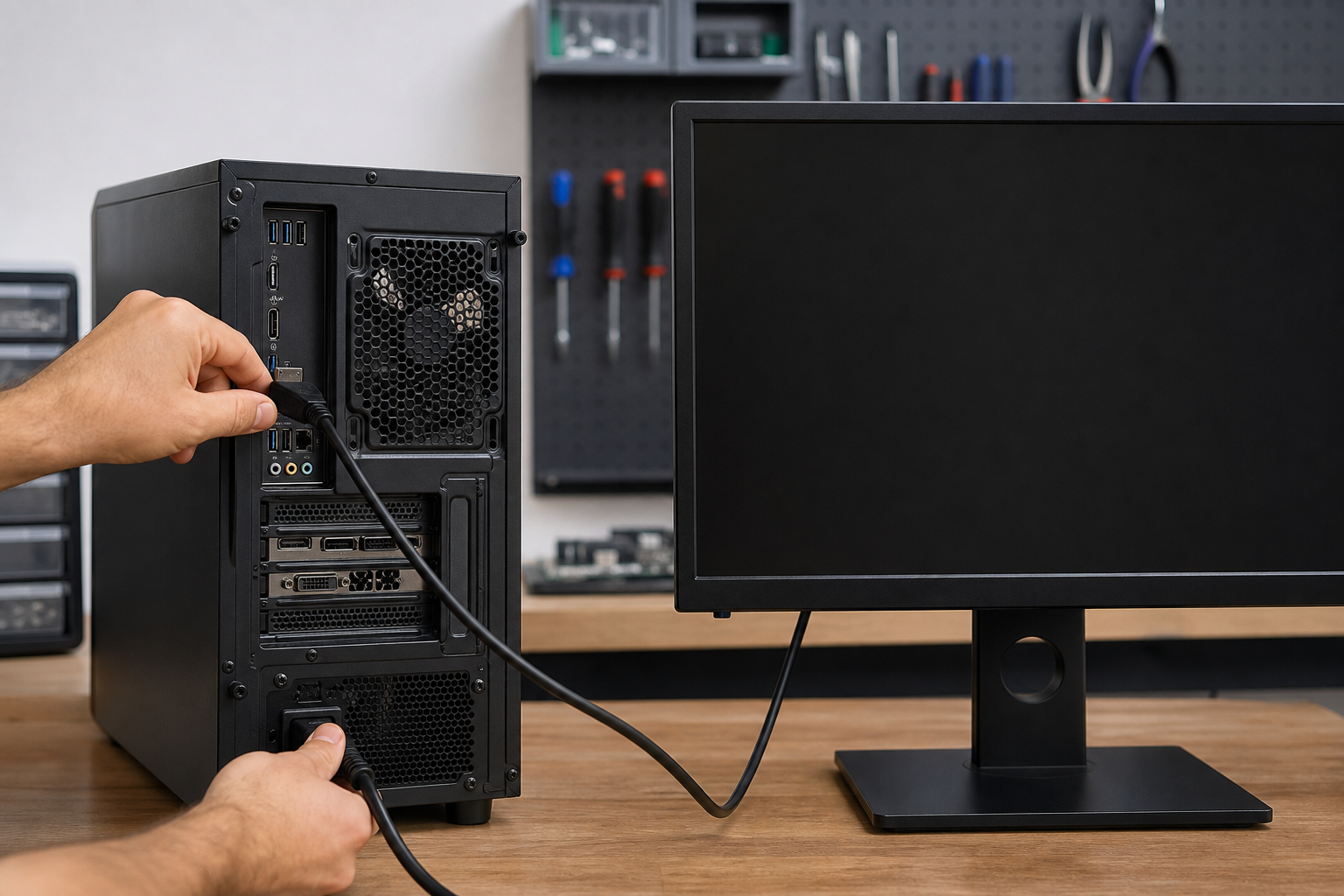
First, confirm that the monitor’s power cable is firmly connected and that its power indicator is lit. Press the monitor’s power button once if it has a separate switch, then wait several seconds. Use the monitor’s built-in menu or input control to select the connection you are using, such as HDMI, DisplayPort, or USB-C. For example, a monitor set to HDMI 2 may show no signal when the computer is connected to HDMI 1.
Check both ends of the video cable without forcing either connector. If you have a known-good, compatible cable, testing it once can help distinguish a cable issue from a computer or monitor issue. Do not use a visibly damaged cable, and stop if a connector or port is loose, bent, or unusually hot.
If the computer is connected through a dock, hub, adapter, or KVM switch, temporarily connect the monitor directly to the computer if the available ports and cables support that arrangement. Each additional device creates another possible point of failure. If a direct connection restores the picture, the dock, adapter, input selection, or its power supply may need further attention.
On a desktop with a separate graphics card, make sure the monitor cable is connected to the intended video output. Do not move internal components or open the case solely to inspect the connection. If you are uncertain which output should be used, check the computer or graphics-card documentation rather than experimenting with internal hardware.
Safe checks for a laptop
Connect the laptop’s appropriate charger and allow it a few minutes if the battery may be fully depleted. Look for a charging indicator or another sign that the charger is recognized. If the charger, cable, outlet, or connector becomes hot, smells burnt, sparks, or appears damaged, unplug it and stop using it.
Try increasing the screen brightness with the laptop manufacturer’s keyboard shortcut, usually identified by a sun symbol. Disconnect external monitors, docks, USB devices, memory cards, and other accessories, then try starting the laptop again. A faulty accessory or dock can interfere with startup or video output.
If the laptop appears to be running, a compatible external display can sometimes help separate a built-in screen problem from a broader startup problem. A picture on the external display but not on the laptop panel may point toward the laptop screen, backlight, or display connection. No picture on either display suggests that the issue may involve startup, graphics hardware, power, or another component.
If the screen works only when the lid is held at a particular angle, do not keep moving it back and forth to test the symptom. That pattern can indicate a damaged display cable or hinge-area hardware. Arrange service instead of repeatedly stressing the hinge or display connection.
Try only one controlled restart
If the computer appears frozen and there is no indication that it is actively working, hold the power button until it shuts down, wait several seconds, and start it again once. A forced shutdown can interrupt an update or file operation, so it should not become a repeated troubleshooting method. If the computer shows signs of a failing drive, repeated restarts are especially unhelpful.
After the restart, watch for a manufacturer logo, an error message, keyboard lights, or changes in fan activity. If the display works intermittently, record when the picture appears and when it disappears. Note whether the problem begins before the operating-system logo, after the logo, or only after signing in. This information can help a technician distinguish a display-path issue from a startup or software issue.
When to stop troubleshooting
Stop using the computer and seek professional help if you notice smoke, a burning smell, sparks, liquid exposure, unusual heat, damaged power equipment, or a swollen battery. Do not continue charging a device with a swollen battery, and do not open the device to press on, puncture, or remove the battery.
If a desktop makes repeated clicking, grinding, or scraping sounds, especially when important files are stored on it, stop restarting it. Avoid drive-scanning utilities, operating-system reinstallation, or other changes until the data situation is understood. If the black screen began after a drop, impact, or liquid spill, further handling may worsen hardware or data damage.
What to record and do next
Write down the computer model, the lights and sounds you observe, any message shown by the monitor, the cables and accessories in use, and whether the issue occurs before or after the operating-system logo. Also note recent changes such as a new monitor, dock, update, cable, drop, liquid exposure, or power event.
If the computer becomes usable again, back up important files before continuing to test an intermittent display problem. For prevention, use undamaged cables, keep laptop vents clear, and handle hinges and connectors gently. A current backup reduces the chance that a display fault becomes a data-access emergency.
AME Computers can help diagnose a black-screen problem, test the display and startup path, and recommend an appropriate next step. If you are in Bellevue or the surrounding area, professional computer repair may be safer than opening a device or repeatedly restarting it when important data is involved.