
Choose browser profiles
The test build includes discovery for standard Chrome, Edge, Brave, Vivaldi, Chromium, Opera, Opera GX and Firefox profiles. Custom profiles can be added. Final compatibility will be confirmed through Windows testing.
Take back control of unwanted website notifications.
A portable Windows utility from AME Computers, currently in testing.
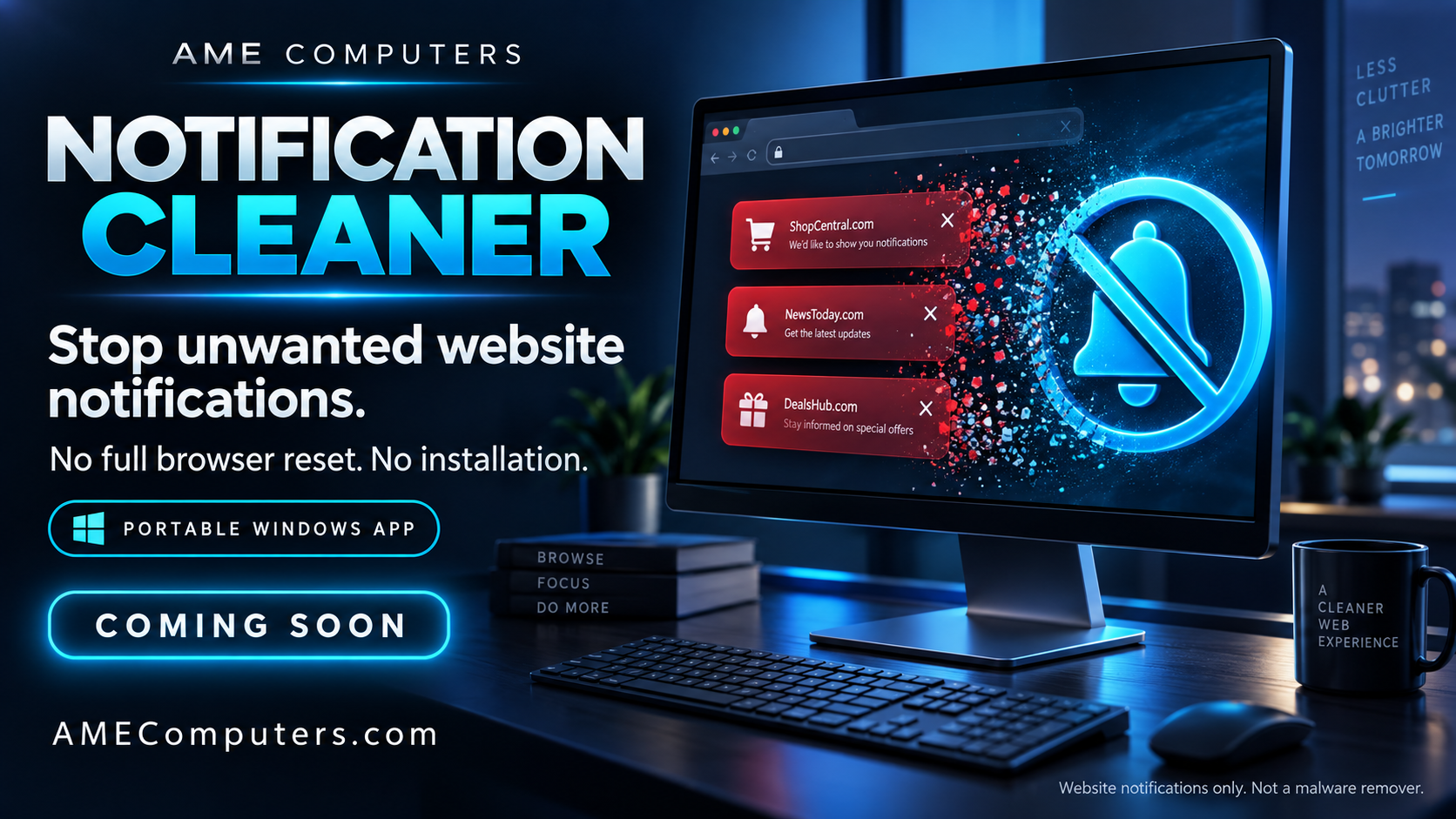
Tired of persistent website notifications and alarming pop-ups? AME Computers is preparing a portable Windows utility designed to clear website notification permissions and block new notification requests—without a full browser reset.
This tool targets website notification spam; it does not replace antivirus software or remove malware.
Website notifications are a normal browser feature. A trusted site might use them for messages or reminders. Scammers abuse the same permission to deliver alarming ads that imitate security alerts. A website claiming it found viruses is not a trustworthy diagnosis of your computer.
A site asks your browser for permission to send notifications. Deceptive pages may claim that clicking Allow proves you are human or unlocks content. The permission is for notifications, not a security check. You may have accepted it earlier without realizing what it allowed. Microsoft documents this exact fake verification tactic. Read Microsoft's explanation.
This illustration recreates the familiar pile-up of warnings along the edge of a Windows screen. The claims are designed to scare you into clicking. Names, colors and wording vary; look at the website sending the message, not just its icon.
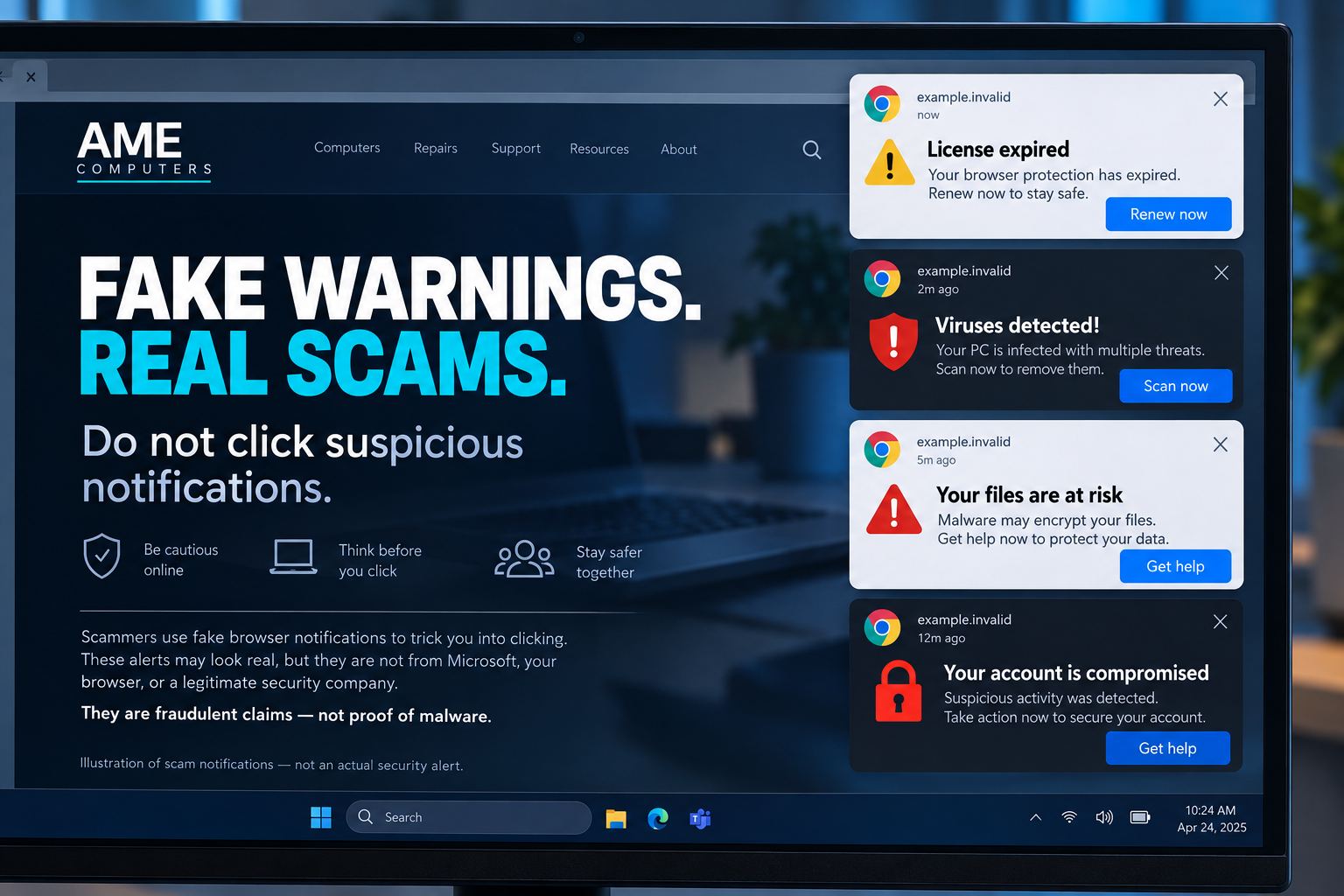
The goal is to move you from a scary message to a fraudulent offer: paying for an unnecessary repair, entering personal information, or downloading unwanted software. A fake support page may also ask you to give someone remote control of your computer. Microsoft explains these support-scam tactics.
Do not use their scan, renew, repair or claim buttons. Do not call numbers in the warning, enter passwords or payment details, or grant remote access. Check any security concern by opening your trusted security software yourself.
Google's notification settings guide explains how to manage individual senders. You can use browser settings now; you do not need to wait for this app.
The current test build finds browser profiles for the signed-in Windows account. You select profiles, close the browsers, and choose Clean + block. It clears website notification exceptions and blocks new notification requests in those selected profiles.
This is not a scam detector that selectively removes only bad senders. You may need to allow trusted websites again in browser settings.
Clear website permissions and block new requests. No full browser reset.
1. Save your work and close browsers. 2. Check the profiles. 3. Click Clean + block.
The test build includes discovery for standard Chrome, Edge, Brave, Vivaldi, Chromium, Opera, Opera GX and Firefox profiles. Custom profiles can be added. Final compatibility will be confirmed through Windows testing.
The code targets notification settings, not bookmarks, saved passwords, history, cookies or extensions. It is not a full browser reset, and it does not forcibly close browsers.
The build saves backups before file changes and reports completed, skipped or incomplete work. Review the report; a successful file change does not by itself confirm live browser behavior.
Restore uses saved file snapshots and skips files changed after cleanup. Reopening a browser can affect restore availability. Restoring old settings may also bring back unwanted permissions.
It does not remove malware, extensions, installed web apps, in-page advertisements, Windows app notifications or notification cards already delivered. Work or school policies may override settings. Other Windows accounts are not automatically covered.
Coming soon: the supplied build is for testing. Public release details and confirmed Windows/browser requirements will appear here when ready. No public download is available yet.
Not yet. AME Notification Cleaner is being tested before public release. Check this page for availability.
No. It targets website notification permissions. If you suspect an infection, contact AME Computers for help assessing the problem.
The tool is designed to work on website notification permissions without a full browser reset.
See the test-build interface illustration above. Actual release screenshots, confirmed compatibility and release notes will be added when the public version is ready.
Contact AME Computers about unwanted notifications or other computer problems.
Contact AME Computers