
Windows & Performance
Windows Apps Keep Crashing? Safe Steps to Narrow Down the Cause
Repeated Windows app crashes may come from one damaged program, a recent change, limited storage, or a broader system problem. These careful checks can help identify the pattern without putting your files or hardware at unnecessary risk.
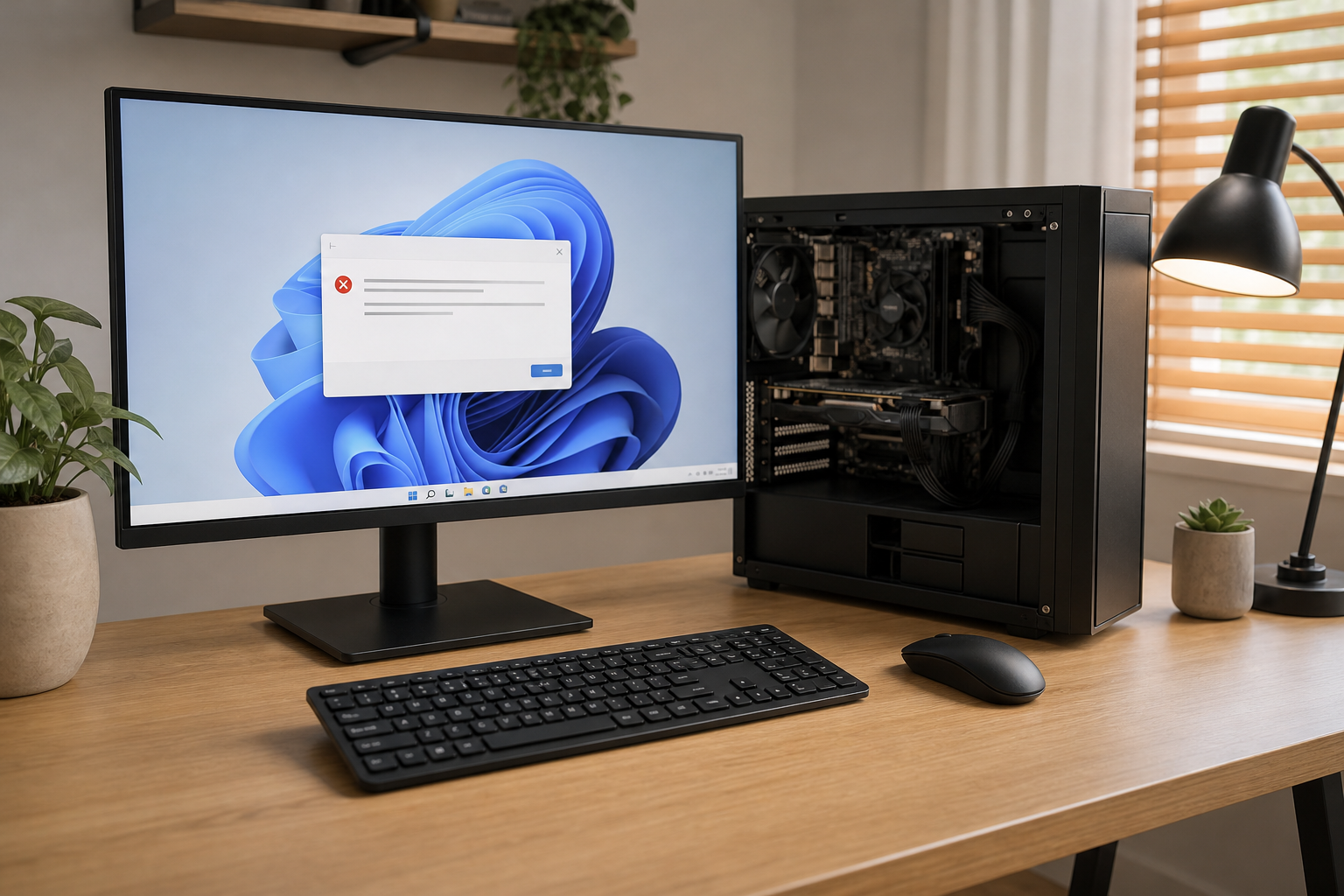
What recurring app crashes can mean
When a Windows program closes unexpectedly, freezes, or shows “Not Responding,” the problem may be limited to that application. A damaged setting, incomplete update, incompatible extension, or corrupted temporary file can make one program fail while the rest of the computer continues working.
Crashes in several unrelated programs suggest a wider issue. Possible causes include limited available memory, a nearly full or failing storage drive, damaged Windows components, an outdated driver, overheating, or recently installed software that conflicts with another component. A crash is a symptom rather than a complete diagnosis, so the pattern matters.
Before changing advanced settings, note the program name, what you were doing when it failed, and whether the same error appears each time. Record any error code or file name, or take a photo of the message. Avoid including personal documents, account details, or other private information if you share a screenshot with someone helping you.
Patterns that help narrow down the cause
- One program fails: The application, one of its files, an add-on, or a setting may be responsible.
- Several programs fail: Windows, memory, storage, drivers, or another shared component may need attention.
- The crash occurs with one document: That file may be damaged, unusually large, or incompatible with the program.
- The computer freezes or restarts: The issue may extend beyond a normal application error.
- Crashes increase when the computer is hot: Heat, blocked vents, or a cooling problem may be contributing.
- The problem began after a change: A recent update, application, extension, driver, or peripheral may be relevant.
A single crash is not necessarily a sign of serious damage. Repeated failures, worsening behavior, file corruption, or instability across multiple programs deserve more attention.
Safe checks to try first
1. Save your work and restart normally
If the program still responds, save your work and close it. If it is temporarily unresponsive, wait briefly to see whether it recovers. Close the program through Windows when possible, then restart the computer normally.
A restart can clear temporary memory and end a background process that is interfering with the application. Avoid repeatedly holding down the power button unless Windows will not respond at all. Forced shutdowns can discard unsaved work and interrupt updates or file operations.
2. Find out whether one program or the whole computer is affected
After restarting, use a few ordinary applications for simple tasks. You might open File Explorer, a web browser, or another program you regularly use. If only one application fails, check its built-in update feature and the publisher’s support information. If many applications are unstable, focus on the computer as a whole rather than repeatedly reinstalling the same program.
3. Update through trusted sources
Use Windows Update in Settings and the application’s normal update option. Download software only from the publisher’s legitimate website or a recognized app store. Be cautious with pop-ups claiming that an urgent “driver fixer,” registry cleaner, or paid optimization tool is required. An unexpected warning is not proof that your computer has a hardware problem.
Restart if Windows or the application requests it. Do not interrupt an update that is actively installing. If the computer has clearly remained unresponsive for an unusually long time, make a note of what was on screen and seek advice before repeatedly forcing it off.
4. Check storage space and system activity
Windows and applications need free space for temporary files, updates, and virtual memory. If the system drive is nearly full, remove files you recognize and no longer need, and empty the Recycle Bin only after checking its contents. Move personal files to a known-good backup location rather than deleting unfamiliar folders from Windows or program directories.
Task Manager can help show whether memory, disk, or processor use remains unusually high. Open it with Ctrl + Shift + Esc and review the Processes and Performance tabs. Look for a sustained pattern instead of reacting to a brief spike. Do not end unfamiliar tasks at random; some processes are required by Windows or security software.
5. Review recent changes
Consider whether the crashes began after installing an application, browser extension, security tool, peripheral, or driver. If the timing is clear, use the software’s normal uninstall process or temporarily disable a recently added browser extension. Keep important files backed up before making changes.
Do not remove security software casually, use registry-cleaning utilities, or download replacement drivers from unverified websites. If a driver or system component appears to be involved, the manufacturer’s support page or a qualified technician is safer than a random download site.
6. Check whether a particular file triggers the crash
If the problem happens while opening a document, photo, video, or project, make a copy of that file and test the copy if the storage device appears healthy. A single damaged or unusually large file may be the trigger. If a file is stored on an external drive, network location, or removable device, first make sure the source is operating normally.
Do not repeatedly test files on a drive that is clicking, grinding, disconnecting, or producing other unusual mechanical sounds. Protect the data and arrange professional help instead.
When to stop troubleshooting
Stop using the computer and seek professional service if you notice clicking or grinding from a drive, burning smells, smoke, liquid exposure, exposed electrical parts, a swollen battery, or unusually intense heat. Do not open a swollen battery or continue testing equipment that may have liquid or electrical damage.
Arrange service promptly if crashes affect many programs, Windows restarts unexpectedly, files become corrupted, the computer fails to start reliably, or the issue is accompanied by storage or memory warnings. Repeated factory resets, random driver installations, and aggressive cleanup tools can remove useful evidence, create additional problems, or put files at risk.
Reducing future crashes
Keep Windows and regularly used applications reasonably current. Maintain free space on the system drive, install only software you trust, and limit unnecessary utilities and browser extensions. Keep important files in a current backup, and verify that the backup can be accessed before you need it.
Keep vents clear and use a laptop on a firm surface so air can circulate. If the computer becomes unusually hot, loud, or slow under ordinary use, do not assume that more software cleanup will solve the problem; cooling, dust, power, or hardware may need inspection.
What to provide for repair
If you contact a repair professional, provide the program name, error message, approximate frequency, recent changes, and whether other applications are affected. Mention any unusual heat, restarts, storage warnings, or file errors. You do not need to share passwords or private documents. If safe checks do not resolve the issue, a technician can help distinguish an application fault from a Windows, storage, memory, temperature, or hardware problem.
AME Computers can help diagnose recurring Windows crashes and determine appropriate next steps. For computer repair service in Bellevue, Nebraska, contact AME if the problem continues or the warning signs above appear.