
Windows & Performance
Windows Update Won’t Finish? Safe Steps Before Repair
A Windows update that appears frozen may still be working, waiting for a restart, or affected by another problem. Learn what to check safely before interrupting the process or risking an incomplete update.
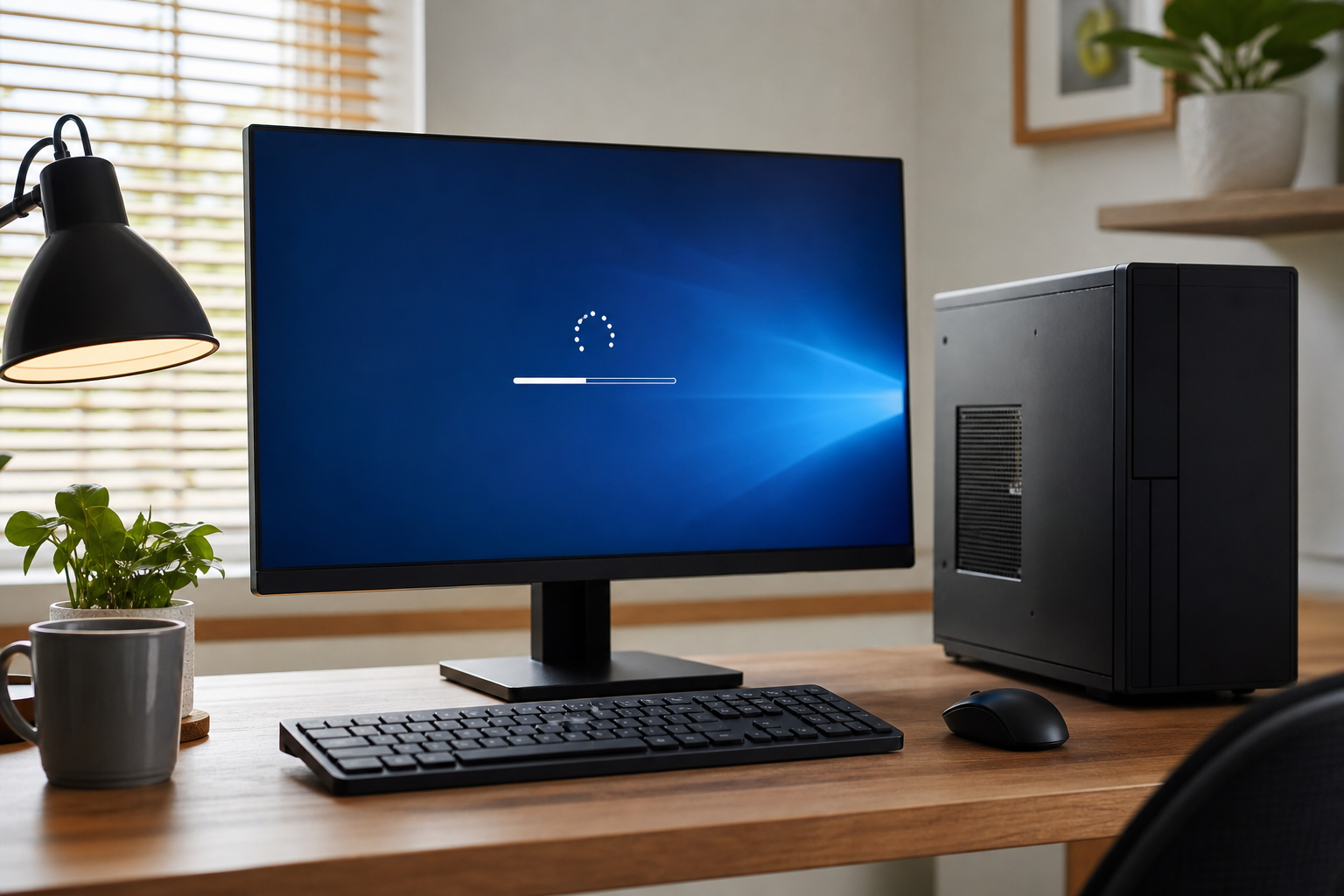
Windows updates can take longer than expected, particularly during a major feature update, when the computer has slower storage, or when Windows is applying changes during a restart. A percentage that does not move for a while does not necessarily mean the computer has failed.
The safest approach is to look for signs that Windows is still working, allow reasonable time for the process to finish, and avoid repeatedly forcing the computer off. Interrupting an update at the wrong point can leave Windows unable to start normally or create additional repair work.
What a stalled Windows update may mean
An update can appear stuck while Windows is downloading files, checking compatibility, preparing system changes, installing drivers, or cleaning up an earlier update. These stages do not always show steady progress on screen.
The process may also be waiting for a restart, available storage, a stable internet connection, or another program to close. If Windows has damaged system files, a storage problem, incompatible software, or another hardware issue, updates may repeatedly pause or fail instead of completing normally.
Common signs
- A message such as “Working on updates,” “Installing updates,” or “Please wait” remains on screen.
- The displayed percentage stays the same for an extended period.
- Windows repeatedly restarts and returns to the same update screen.
- An update downloads but fails during installation.
- Windows reports that it could not complete updates and is undoing changes.
- The computer starts normally, but the same update keeps appearing in Windows Update.
Time alone does not prove that an update is frozen. An older computer, a large update, or a system with limited free space may take considerably longer than a newer computer. Avoid judging the process only by the percentage shown.
Safe checks while Windows is still running
If you can reach the normal Windows desktop, save your work and keep the computer connected to its power adapter. On a laptop, avoid closing the lid if that would put the computer to sleep. If the update is downloading, use a stable internet connection and avoid switching networks during the process.
Check whether Windows is responsive. Can you move the mouse, open the Start menu, or switch between windows? If so, allow the update to continue rather than immediately holding down the power button. Open Settings, select Windows Update, and check whether Windows reports that a restart is needed, an error occurred, or more space is required.
Before trying the update again, check available storage under Settings > System > Storage. Do not delete unfamiliar system folders simply to create space. If storage is low, remove files you recognize, review the Recycle Bin before emptying it, or move personal files to a known-good backup location. The amount of free space required varies by update and system configuration, so avoid relying on a single fixed minimum.
Disconnecting unnecessary accessories can sometimes help isolate a problem. Remove external drives, docks, printers, and other USB devices, but do not unplug a device that is actively being used for a backup or installation. Keep the keyboard, mouse, display, and power connected.
If the screen appears frozen
First, wait if the computer shows signs of activity, such as occasional screen changes, fan activity, or changing storage-activity indicators. These clues are not conclusive, and some computers do not provide visible activity indicators, but they may suggest that Windows is still processing.
If the screen has not changed for a long time and the computer does not respond to the mouse or keyboard, a forced shutdown may eventually be necessary. Use this only as a last resort, after allowing the update a reasonable opportunity to finish and confirming that the computer is not waiting for you to sign in or select a restart option.
If you must shut it down, use the physical power button once, then start the computer once and observe what happens. Do not repeatedly force power-offs if Windows begins automatic repair, recovery, or a rollback. Repeated interruptions can increase the risk of startup problems and data loss.
If Windows displays “Undoing changes,” “Automatic Repair,” or another recovery screen, let that process complete. Interrupting a rollback or repair can make startup problems worse.
When to stop and seek help
Arrange professional service if the computer repeatedly fails the same update, cannot reach the Windows desktop, shows repair messages on every startup, or reports disk, boot, or file-system errors. Repeated update failures can be associated with a damaged Windows installation, storage trouble, incompatible drivers, or another hardware issue. The update message alone usually cannot identify the cause.
Stop using the computer and seek service if you notice a burning smell, unusual electrical sounds, a swollen laptop battery, liquid exposure, or severe overheating. Do not open the computer or continue restarting it in those situations. Do not experiment with a drive that is making unusual noises or showing signs of failure.
If important files are not backed up and the computer is behaving unusually, avoid resetting Windows, reinstalling the operating system, or using aggressive cleanup tools before your files are protected. A reset or reinstall can remove data, and continued use of a failing storage device can make recovery more difficult.
Preventing future update problems
Keep reliable backups of documents, photos, and other important files before major system changes. Allow Windows to install routine updates when the computer is connected to power and you do not need it immediately. Maintain reasonable free storage and avoid shutting down the computer during an update simply because the screen appears inactive.
Be cautious with third-party “driver updater” and “registry cleaner” programs. They can introduce incompatible software or make diagnosis harder. Windows Update and support software supplied by the computer manufacturer are safer starting points than unfamiliar utilities, but a driver should not be changed repeatedly without a clear reason.
Need help with a Windows update?
A qualified technician can help determine whether an update problem is related to Windows, storage, drivers, or other hardware. If the computer cannot start normally or your files are not backed up, have it evaluated before attempting a reset or repeated forced restarts. Bring any visible error message or update history if it is available; it may help identify the next safe step.