
Windows & Performance
No Sound From Your Computer? Safe Checks Before Service
No audio may be caused by a muted app, incorrect output device, disconnected accessory, software change, or hardware fault. These low-risk checks can help narrow down the cause before repair.
What no sound can mean
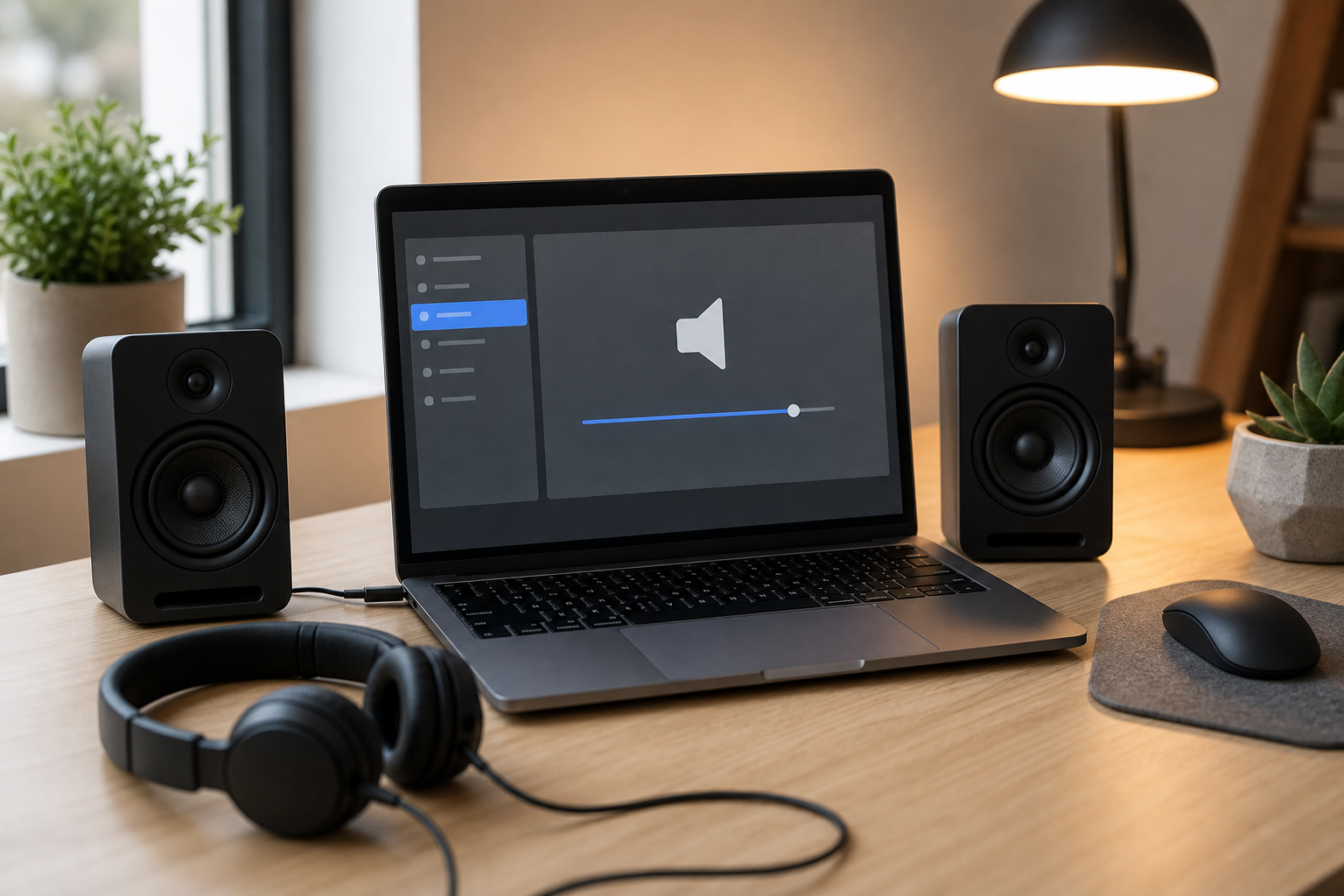
When a computer is silent, the built-in speakers may not be the problem. Audio passes through several points: the application, the operating system’s volume controls, the selected output device, the audio software, and the physical speakers or headphones. A problem at any point can prevent you from hearing sound.
Begin by determining whether the issue affects all audio or only one program. If a video has no sound but system alerts play normally, the application, website, or media file may be muted. If headphones work but the built-in speakers do not, the selected output or speaker hardware may be involved. If nothing produces sound, the problem may affect the computer more broadly.
Common signs of an audio problem
- The volume icon shows muted, unavailable, or unusually low audio.
- A video, music app, or meeting program shows playback activity, but you hear nothing.
- The computer sends sound to a monitor, television, dock, Bluetooth device, or headset instead of the intended speakers.
- Headphones work intermittently, or audio changes when a plug or cable is moved.
- The operating system reports that no audio output device is installed.
- Sound stopped after an update, restart, sleep-and-wake cycle, or connection to another device.
- Audio is distorted, crackling, unusually quiet, or limited to one side.
Safe checks to try
1. Check the application and system volume
Play a familiar, trusted audio source while checking both the application’s volume and the computer’s main volume control. Make sure the application is not muted and that its volume slider is raised. Websites, video players, games, and meeting programs often have separate mute controls.
Also check whether the computer is muted through a keyboard function key or a physical control. Raise the volume gradually rather than setting it immediately to maximum, particularly if headphones are connected.
If you use external speakers, confirm that they are switched on and that their volume control is at a moderate level. Use the speakers’ normal power connection and avoid using a cable that is frayed, crushed, or otherwise damaged. For wired headphones, make sure the plug is fully inserted into the correct audio jack or adapter.
2. Confirm the selected output device
A computer can send sound to a device that is connected but difficult to hear. This is common after connecting an HDMI or USB-C monitor, docking station, television, headset, or Bluetooth speaker.
Open the operating system’s sound settings and review the selected output. Choose the built-in speakers or the headphones you actually want to use. If a monitor or television is selected, the computer may be sending audio through that device instead of its internal speakers. Some monitors have their own volume controls or no speakers at all.
For Bluetooth equipment, confirm that it is powered on, sufficiently charged, nearby, and connected to this computer rather than another phone or tablet. If you do not need the device, disconnect it using the normal Bluetooth controls and test again. Do not keep changing settings if the device repeatedly connects and disconnects; that pattern may indicate a pairing, power, or hardware problem.
3. Test with a known-working accessory
If practical, connect a known-working pair of headphones or speakers that is compatible with the computer. This can help separate a computer problem from a failed accessory. If the second device works, inspect the original headphones or speakers for cable, plug, power, or volume-control problems and consider replacing them.
If headphones work but the built-in speakers remain silent, the issue may involve the internal speakers, output selection, or audio-jack detection. Avoid inserting tools or objects into the audio jack, and do not repeatedly force a plug in and out. A damaged port or internal speaker usually needs inspection by a qualified technician.
4. Restart normally
A normal restart can reload audio services and clear a temporary problem caused by a dock, update, or sleep-and-wake transition. Save your work first, then use the operating system’s regular restart command.
Avoid repeatedly forcing the computer to shut down unless it is completely unresponsive. Forced shutdowns can interrupt unsaved work and may create additional problems unrelated to the original audio issue.
5. Review recent changes
If the problem began after connecting a monitor, dock, headset, or Bluetooth device, disconnect that equipment using its normal controls and test the computer again. If sound returns, reconnect devices one at a time to identify which change affects the output.
If the issue started after an operating-system update, check the normal system settings for any additional updates or restart prompts. Updates can sometimes correct compatibility problems, but they can also change the default output device.
On Windows, the built-in sound troubleshooter may identify a muted output, disabled device, or basic driver issue. Use tools included with the operating system rather than downloading “driver fixer” programs from advertisements or unfamiliar websites. Those programs may install unwanted software, request excessive permissions, or make the problem harder to diagnose.
Do not randomly delete audio drivers, change firmware settings, or install drivers from unofficial sources. If the operating system reports that an audio device is missing, record the exact message and seek help if the basic checks do not resolve it.
When to stop troubleshooting
Stop using the equipment and arrange professional help if you smell burning, see melted or discolored plastic, notice liquid near the computer or speakers, or find a damaged power cable. Unplug external equipment only if it is safe to do so, and do not handle damaged plugs or exposed wires.
Do not open a laptop, monitor, powered speaker, dock, or other device to inspect internal wiring. Internal components can be damaged by static electricity or accidental contact, and opening a device may affect warranty or service coverage.
Professional service is also appropriate when the computer repeatedly loses audio, produces loud pops, has distortion at every volume level, or continues reporting that the audio device is missing after normal restarts. Possible causes include software configuration, an incompatible driver, a damaged port, a failed speaker, or a problem with the computer’s audio circuitry. Advanced changes made without a clear diagnosis can make the issue worse.
How to prevent future audio problems
Install operating-system and device updates through the computer’s normal update tools. Use compatible headphones, speakers, docks, and adapters from reputable sources. Disconnect cables by holding the plug rather than pulling on the cord, and keep liquids away from the computer and audio equipment.
If you regularly use a monitor or dock, check the selected sound output whenever you change your setup. Before an important meeting, test the speakers and microphone and keep a known-working headset available if possible.
When AME Computers can help
If these checks do not restore sound, AME Computers can help determine whether the cause is software, an accessory, a port, or internal hardware. Bring the computer and, when practical, the affected headphones, speakers, dock, or adapter so the complete setup can be tested. Contact AME Computers to arrange a professional evaluation in Bellevue, Nebraska.