
Laptop & Charging
Laptop Touchpad Stopped Working? Safe Checks Before Service
A laptop touchpad may stop responding because it was disabled, a setting changed, software stopped communicating correctly, or the hardware was damaged. These low-risk checks can help narrow down the cause without opening the laptop.
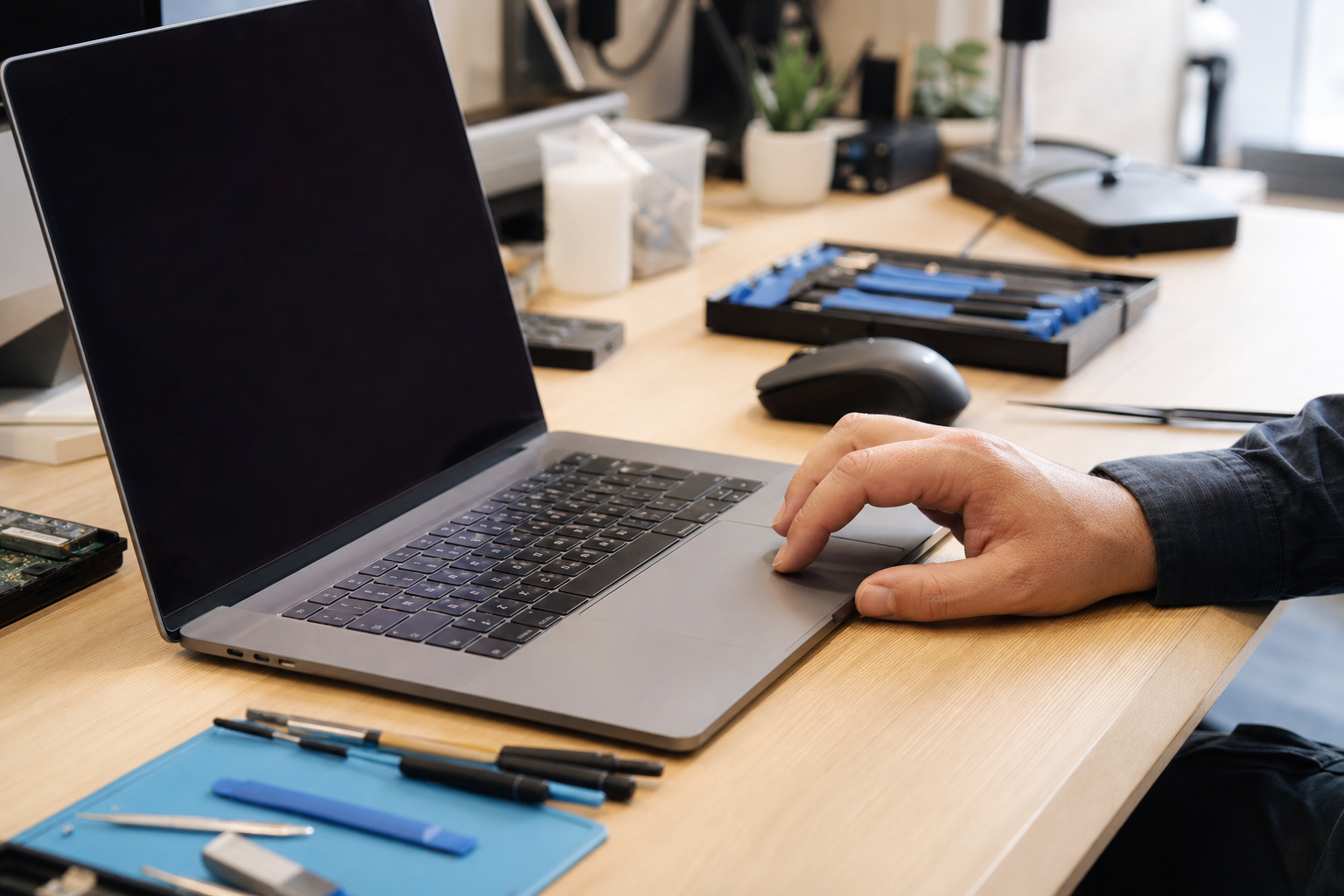
A laptop touchpad that suddenly stops responding can make the computer difficult to use, especially if you do not have a separate mouse. Sometimes the cause is simple, such as an accidental keyboard shortcut or a changed setting. Other cases involve an operating system or driver problem, liquid exposure, a swollen battery, or physical damage.
The checks below are intended to help identify the likely cause without opening the laptop or changing advanced system settings. Stop if you notice signs of electrical, battery, or liquid damage.
First, determine whether the laptop is responding
A touchpad may appear to fail when the entire computer is frozen. Press a few keys, open a menu with the keyboard, or connect a known-working external mouse if one is available. If the keyboard, screen, and external mouse work normally, the problem may be limited to the built-in touchpad or its settings.
Note whether the problem occurs immediately after startup or begins after the laptop has been running. Also notice whether the touchpad works intermittently, clicks normally, or feels physically different. A touchpad that is merely disabled should be handled differently from one that is raised, difficult to press, or separated from the case.
Common causes of a nonworking touchpad
- An accidental keyboard shortcut disabled the touchpad
- A setting disables the touchpad when a mouse or other pointing device is connected
- An operating system update changed a device setting or caused a temporary software problem
- The touchpad driver is missing, damaged, or not communicating correctly
- Dust, moisture, impact, or another physical problem is affecting the touchpad
- A problem with an internal cable, input circuit, or system board is affecting the device
Safe checks to try
1. Restart normally
If the keyboard and display are responsive, use the operating system’s normal restart option. Restarting can clear a temporary software or driver communication problem. Avoid holding down the power button unless the laptop will not shut down normally, because a forced shutdown can interrupt open work and unsaved data.
2. Look for a touchpad-disable shortcut
Many laptops have a function key marked with a touchpad symbol. Depending on the model, it may work by itself or with the Fn key. Press the identified key once, wait briefly, and test the touchpad. The location and behavior vary by manufacturer, so consult the laptop’s manual or official support documentation if the symbol is unclear.
Avoid pressing unrelated function keys repeatedly. Some control the display, wireless networking, volume, or power settings, which can create additional confusion.
3. Check the touchpad setting
In Windows, use a mouse or the keyboard to open Settings > Bluetooth & devices > Touchpad. Confirm that the touchpad is enabled. If an option controls whether the touchpad remains active when a mouse is connected, review that option too. The wording may differ slightly between Windows versions.
On a Mac, open System Settings and review the available trackpad settings. If a mouse is connected, check whether an accessibility or mouse setting is configured to ignore the built-in trackpad. Menu names and available options can vary by macOS version and model.
4. Disconnect accessories
Temporarily disconnect a USB mouse, docking station, USB hub, or other pointing device. Then restart the laptop and test the touchpad again. Some computers are configured to disable the touchpad when an external mouse is detected, and a faulty dock or accessory can sometimes interfere with input.
If the touchpad works after disconnecting one accessory, reconnect devices one at a time to identify whether the behavior changes. You do not need to repeatedly test an accessory that becomes hot, smells unusual, or appears damaged.
5. Clean the surface without adding moisture
Turn the laptop off before cleaning. Wipe the touchpad gently with a soft, dry, lint-free cloth. Do not spray cleaner directly onto the computer, pour liquid near the touchpad, or use a sharp object to remove debris from its edges. Liquid can travel beneath the surface and damage internal components.
If liquid was recently spilled on the laptop, stop using it instead of trying to test the touchpad repeatedly. Disconnect power if it is safe to do so, do not charge it, and arrange professional evaluation.
6. Check trusted updates
If the problem began after an operating system update, check for additional updates through Windows Update or macOS Software Update. For a Windows laptop, obtain any needed touchpad driver only through Windows Update or the laptop manufacturer’s official support site. Avoid driver-download sites that bundle unrelated programs or ask you to disable security protections.
Do not uninstall the touchpad or other input devices in Device Manager unless you understand how the device will be restored and have another reliable way to control the computer. Removing the wrong device can create additional problems without resolving the original fault.
When to stop using the laptop
Stop using the laptop and arrange professional service if the touchpad is raised, difficult to click, pushed upward, or separated from the surrounding case. A raised touchpad can indicate a swollen battery. Do not press it flat, continue charging the laptop, or open the case to investigate.
Also stop using the computer if you smell burning, notice unusual heat, see physical damage, or the touchpad and keyboard began failing together after a drop or impact. Do not open the laptop to reseat internal cables unless you have the appropriate experience and tools. Battery and ribbon-cable work can cause injury or additional damage when performed incorrectly.
If the touchpad still does not work
Record when the issue began and whether it followed an update, spill, impact, repair, or accessory change. If the laptop is operating normally and your files are accessible, back up important data before arranging service. An external mouse can provide temporary access, but it will not correct an underlying hardware problem.
A technician may need to test the touchpad separately, inspect its cable and connector, review the operating system and driver, and check for signs of liquid, impact, or battery swelling. The appropriate repair depends on the laptop model and the results of that inspection.
If these safe checks do not restore the touchpad, professional diagnosis is the safest next step. A repair provider can help determine whether the issue is a setting, software problem, damaged component, or a broader hardware fault before recommending service.