
Windows & Performance
Windows Blue Screen Keeps Returning? Safe Steps Before Repair
A blue screen can result from a driver, update, software conflict, overheating, memory, storage, or another hardware problem. Learn what to record, which checks are low-risk, and when to protect your files and seek help.
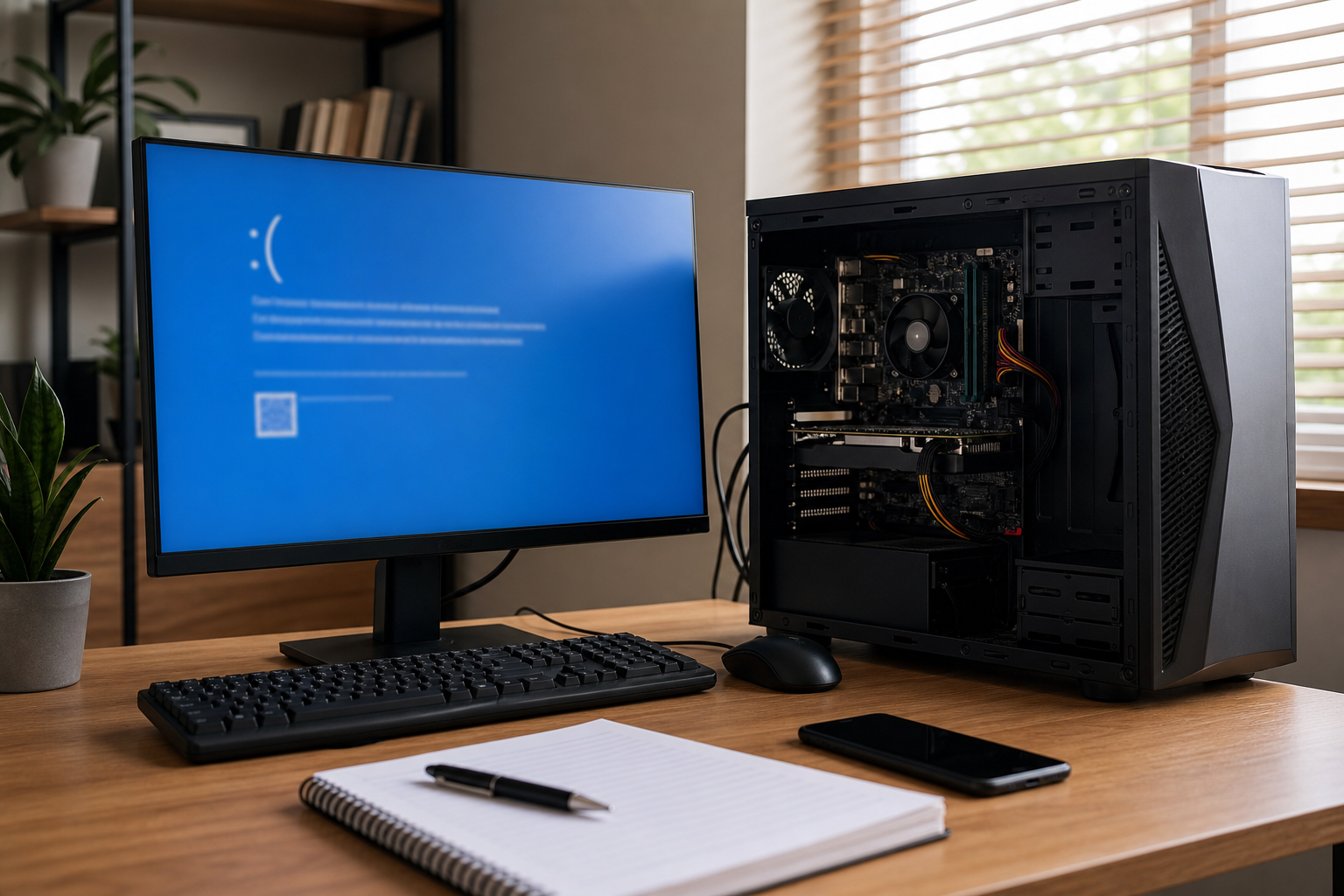
What a blue screen means
A Windows blue screen, also called a bug check or stop error, appears when Windows detects a serious problem and cannot safely continue. The system stops to limit the risk of continuing with corrupted data or an unstable component, then may restart automatically.
One blue screen does not necessarily mean the computer is permanently damaged. Possible causes include a recently installed driver, Windows update, incompatible software, overheating, memory problems, storage trouble, or another hardware fault. The most useful clues are the exact stop code, what the computer was doing, and whether the error happens again.
Record the details before they disappear
Blue screens can occur during startup, when waking from sleep, while opening a particular application, or during demanding work such as gaming or video editing. Windows may show a message such as MEMORY_MANAGEMENT, CRITICAL_PROCESS_DIED, IRQL_NOT_LESS_OR_EQUAL, or INACCESSIBLE_BOOT_DEVICE. It may also display a percentage while collecting information before restarting.
If the screen disappears too quickly to read, use a phone to photograph it if the error happens again. Record the exact stop code, date and time, and what was happening immediately beforehand. Note recent changes too, including Windows updates, new software, antivirus products, printers, USB devices, drivers, or internal hardware. These details are more useful than simply reporting that “the computer crashed.”
Low-risk checks to try
Disconnect nonessential accessories. If Windows can shut down normally, turn it off and remove recently added USB devices, external drives, docking stations, printers, webcams, and other accessories. Leave the keyboard, mouse, monitor, and power connection attached as needed. A faulty device or its driver can contribute to repeated crashes. If the problem stops, reconnect devices one at a time rather than reconnecting everything at once.
Review recent changes. If the blue screens began soon after installing a program, driver, update, or hardware, that change deserves attention. Avoid repeatedly installing drivers from random download sites or using automatic “driver fixer” utilities. If a driver needs to be updated or replaced, use Windows Update or the computer or component manufacturer’s official support site.
Install pending Windows updates only when the computer is reasonably stable. Updates can address compatibility and security problems, but a computer that is crashing during ordinary use may need diagnosis first. Keep it connected to reliable power and do not interrupt an update after it has begun. If the computer repeatedly crashes during the update process, stop retrying and seek advice.
Check free storage space. Windows needs working space for temporary files, updates, and normal system operations. If the system drive is almost full, use Windows storage settings to remove clearly unnecessary temporary files. Do not delete unfamiliar folders from the Windows directory or remove files merely because their names look technical.
Use Safe Mode if normal startup is unreliable. Safe Mode loads a limited set of drivers and services. If the computer remains usable there, a recently added driver or startup program becomes more likely, although this does not prove that the hardware is healthy. Safe Mode can help you collect information or remove a clearly identifiable recent application. If you are unsure what a program does, leave it installed and ask for help rather than removing system software at random.
Review Windows’ recorded history. Reliability Monitor can show when failures occurred and which applications or components were involved. Event Viewer may contain related warnings, but it also records many routine events. Match entries to the time of the blue screen instead of treating every warning as the cause. Crash-dump files and these records can be useful to a technician, even when they are difficult to interpret on their own.
When to stop troubleshooting
Stop using the computer and arrange professional help if blue screens happen repeatedly, occur during startup, or are accompanied by clicking or grinding from a drive, a burning smell, unusual heat, liquid exposure, a swollen battery, or visible physical damage. Do not continue operating a device with a swollen battery or try to test a drive that is making unusual sounds.
Repeatedly forcing the computer off can increase the chance of file-system problems and may make diagnosis more difficult. Avoid opening the device unless you are qualified to work on that model. Do not use registry cleaners, aggressive stress-testing tools, or unfamiliar repair commands as a first response. A tool that claims to fix every driver or hardware problem can introduce additional changes without identifying the original cause.
Protect important files first
If Windows still starts reliably and the storage device appears normal, back up documents, photos, work files, and other important data to a separate, trusted location before deeper troubleshooting. Keep the backup separate from the computer, and check that important files can actually be opened from the backup when practical. A completed copy operation is not always proof that every file is usable.
If the computer crashes while copying, the drive disappears from File Explorer, Windows reports disk errors, or the drive makes clicking, grinding, or repeated spin-up sounds, stop attempting repeated copies. Continued operation can make a failing drive less accessible. Do not format it, reinstall Windows, or run repeated repair and scanning tools before getting advice. Professional repair or data-recovery guidance is safer when the files exist nowhere else.
Reducing the chance of future blue screens
Keep Windows and essential device drivers reasonably current, using official sources. Maintain adequate free space on the system drive, keep vents clear, and use a laptop on a hard surface when it needs good airflow. Remove software you no longer need, particularly programs that install low-level drivers or claim to optimize the system automatically.
Maintain a regular backup routine rather than waiting for the first failure. If crashes are associated with one application, document the pattern and check that application’s official support information before making broad system changes. If the crashes occur under different conditions, continue recording the timing and stop codes instead of assuming that the first suspected cause is correct.
A symptom, not a diagnosis
A blue screen identifies a serious failure, but the message alone may not identify the failing part. The stop code, timing, recent changes, crash records, and any signs of heat, storage trouble, or physical damage help distinguish a software conflict from a hardware problem. If the issue is recurring or your files are important, a technician can inspect the system and explain the practical next step before more changes are made.
AME Computers can help assess a Windows computer that is blue-screening and discuss file-protection options. If the computer is unstable or shows signs of hardware failure, contact a repair professional before continuing to troubleshoot.