
Windows & Performance
Computer Shuts Off Without Warning? Safe Steps for Heat, Power, and Crashes
Unexpected shutdowns can be caused by heat, power delivery, software errors, or failing hardware. Learn which checks are safe, what symptoms can reveal, and when to stop using the computer.
A computer that suddenly powers off or restarts can be alarming, especially when you are working on an important file. The cause is not always a virus or a failing hard drive. Overheating, an unreliable charger or power connection, a worn battery, driver problems, damaged system files, memory faults, and other hardware issues can produce similar symptoms.
Start by observing exactly what happens. Does the screen go black immediately, or does Windows display an error before restarting? Does the problem occur only during games or other demanding tasks, only when the computer is moved, or even while it is idle? These details can help distinguish a heat or power problem from a software crash.
What an unexpected shutdown can indicate
A normal Windows shutdown gives the operating system time to close programs and record system information. If power is interrupted without that process, Windows may report an unexpected shutdown at the next startup. That report confirms that the interruption was abnormal, but it does not identify the cause by itself.
An immediate black screen may be related to power delivery, overheating protection, a failing component, or a loose connection. A blue screen followed by a restart is more consistent with a serious software or driver error, although faulty hardware can also trigger one. A shutdown that occurs only when a game, video editor, or other demanding program is running may involve heat, graphics hardware, power delivery, or memory.
Symptoms worth noting
- Shutdowns during heavy use: Demanding applications make the processor and graphics hardware work harder and produce more heat.
- A hot case or loud fan: Some warmth and fan noise are normal, but unusually high heat or poor airflow deserves attention.
- Problems when a cable moves: This may point to a damaged cable, charging port, power adapter, wall connection, or desktop power connection.
- Restarts after sleep or wake: Drivers, firmware, connected devices, or power-management behavior may be involved.
- A recent update or hardware change: A problem that began soon after an update, new accessory, or repair may be related to that change, although timing alone does not prove the cause.
- Failure to remain powered on: A computer that shuts off during startup or cannot stay on long enough to load Windows may have a more serious hardware or power problem.
Safe checks to try
1. Protect important files
If the computer is stable and your files open normally, make a backup of important documents to a trusted external drive or cloud service. Stop if the computer becomes unstable, files produce read errors, or the storage device makes unusual clicking or grinding sounds. Do not repeatedly force the computer off as a test, and do not keep reopening a damaged file while the system is losing power.
2. Improve airflow
Place a desktop or laptop on a hard, level surface with clear space around its vents. Do not use a laptop on bedding, a couch, or another soft surface that can block airflow. Check whether dust, paper, or nearby objects are covering the intake or exhaust openings.
With the computer powered off and unplugged, you can gently clean accessible exterior vents. Avoid opening a power supply. If internal cleaning or component removal is needed, use a qualified technician unless you have the appropriate training and equipment.
3. Check the external power path
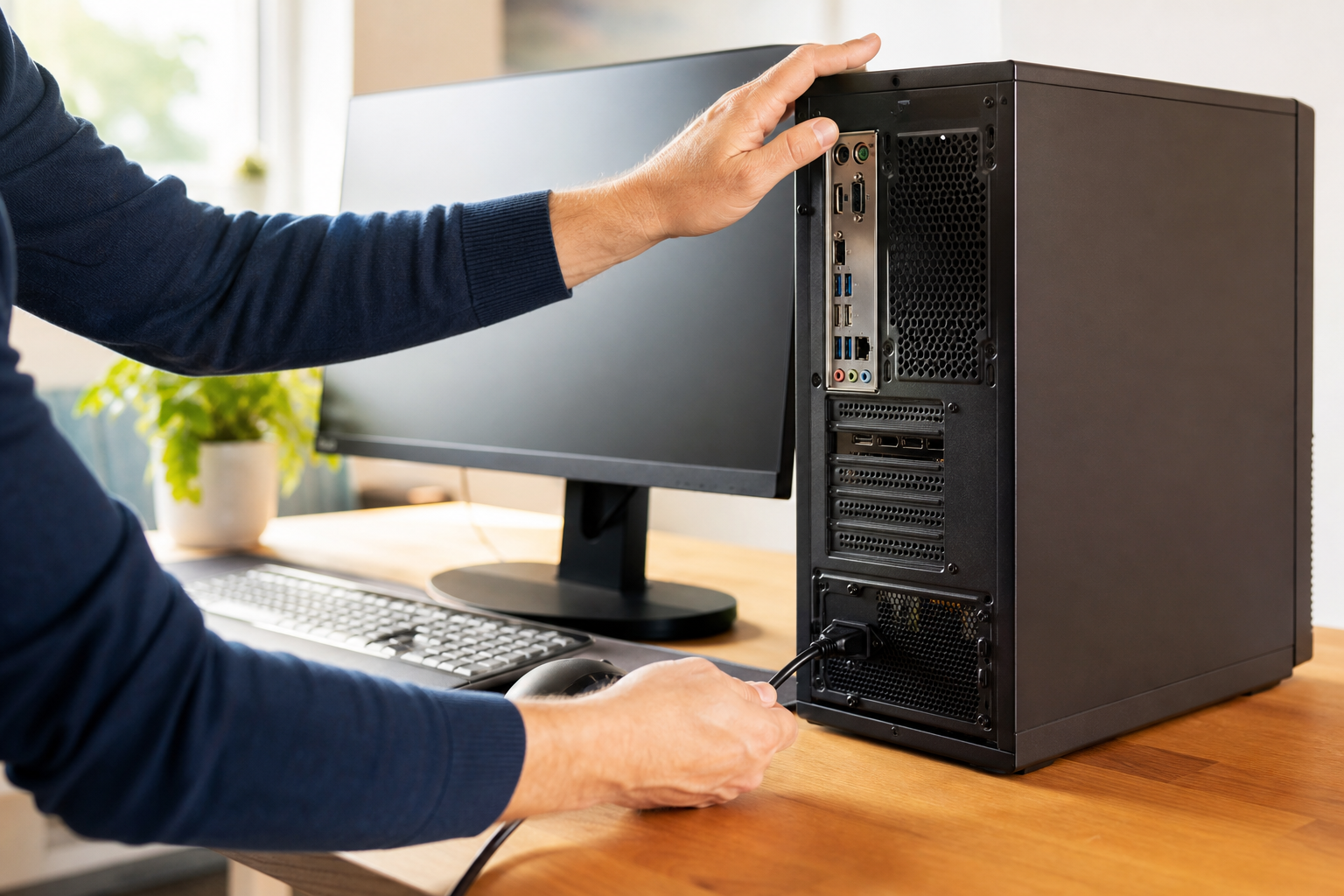
For a desktop, confirm that the power cable is firmly connected to the computer and wall outlet. If the computer uses a power strip or surge protector, make sure it is switched on and not overloaded. You may try a different known-good wall outlet, but do not repeatedly wiggle a loose connector or use a cable with exposed or crushed insulation.
For a laptop, inspect the charger, plug, and charging port without forcing anything. If the computer works only when the cable is held at a particular angle, do not treat that position as a fix. The cable, port, or adapter may need repair, and continued movement can increase the damage.
4. Look for a software pattern
Install pending Windows updates through Windows Update. For drivers, use Windows Update or the computer or component manufacturer’s legitimate support site rather than random driver-download pages. If the problem began immediately after a particular update, application, or accessory was installed, record that timing.
Windows Reliability Monitor and Event Viewer can show when failures occurred. Their entries may be useful to a technician, but they can be difficult to interpret and often do not reveal the root cause. A general “critical” event usually describes the unexpected restart rather than explaining why it happened.
Check whether the shutdown occurs during simple tasks such as browsing or only in one application. If one program consistently triggers the problem, update it from its legitimate source and check its system requirements. Do not disable antivirus software or other security protections merely to see whether the shutdown stops.
5. Record the circumstances
Write down the date, activity, fan behavior, approximate temperature if the computer reports one, attached devices, and any message shown before the restart. Note whether the computer starts normally afterward or becomes difficult to power on. This information is more useful than a general description such as “it keeps crashing.”
When to stop using the computer
Turn the device off and seek professional service if you notice smoke, sparks, a burning smell, melting plastic, liquid inside the device, a swollen battery, or unusual clicking or grinding from a storage drive. If a laptop battery is swollen, do not press on it, puncture it, freeze it, or attempt to remove it without suitable training. Keep a device with serious battery damage away from heat and flammable materials.
Stop troubleshooting if the computer repeatedly shuts down, becomes extremely hot, cannot complete startup, or develops new mechanical noises. Repeated power loss can worsen a hardware problem and interrupt updates or file operations. If important files are involved, avoid reinstalling Windows, formatting a drive, or using aggressive repair utilities before the data has been assessed.
Reducing future shutdown problems
Keep vents clear, use the correct charger and power cable, and avoid operating a laptop on soft surfaces. Apply operating-system and application updates from legitimate sources. Maintain more than one copy of important files, including at least one backup that is separate from the computer. A backup cannot prevent a shutdown, but it can reduce the consequences of hardware failure or file corruption.
If the shutdowns continue after basic airflow and external power checks, the cause may require hardware testing. A technician can evaluate temperatures, power delivery, memory, storage health, drivers, and system logs without requiring you to guess at expensive replacement parts or perform risky internal work.
Need help finding the cause?
AME Computers can evaluate a computer that shuts down, restarts, or becomes unstable. Bring the device, its correct charger or power cable, and notes about when the problem occurs. If the computer shows signs of battery damage, liquid damage, burning, or severe hardware failure, stop using it and contact AME before attempting further troubleshooting.