
Windows & Performance
Windows Running Slowly? A Safe Way to Find the Cause
A slow Windows computer may be affected by startup programs, limited storage, browser activity, updates, heat, unwanted software, or aging hardware. These cautious checks can help narrow down the cause without risking your files.
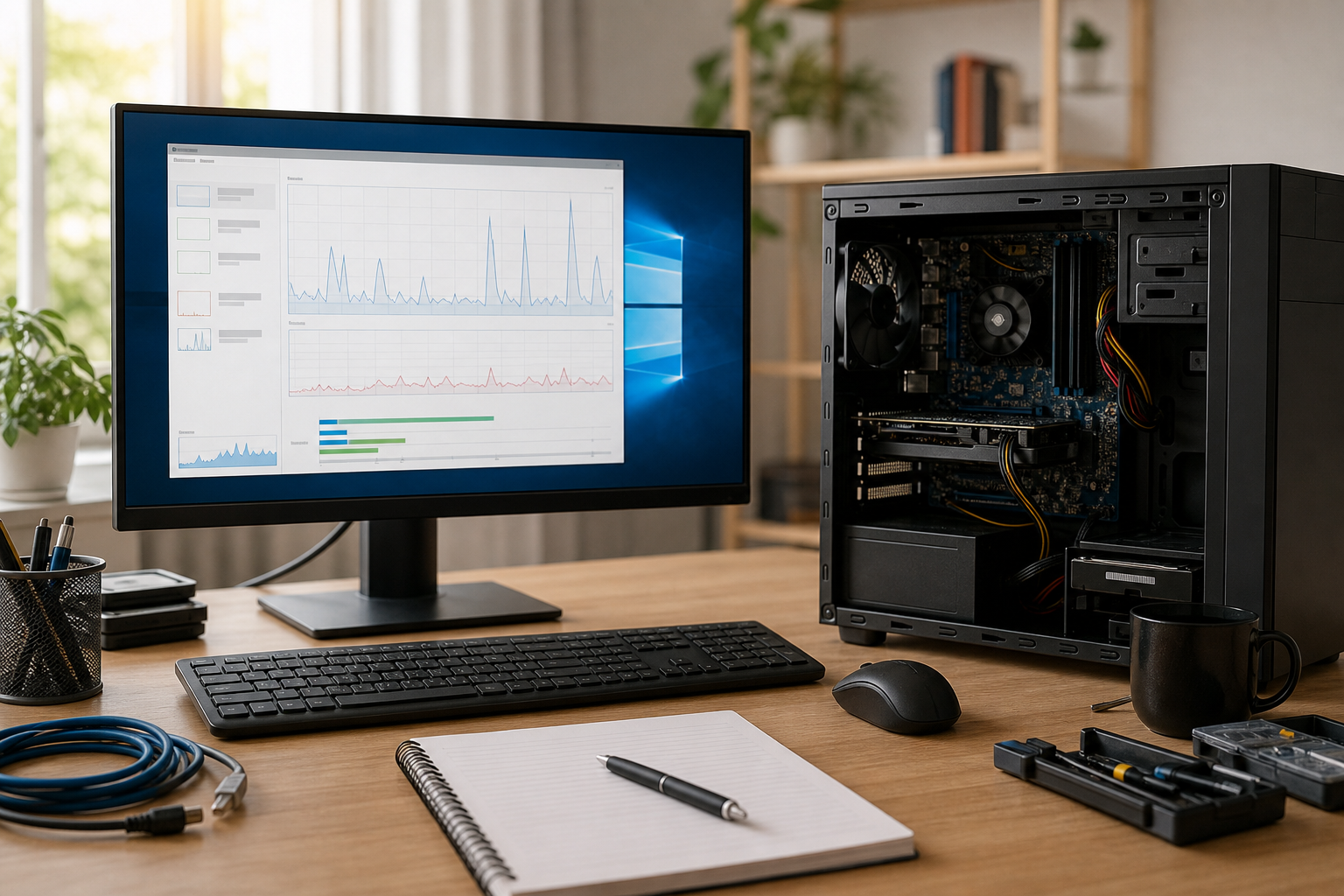
Start by identifying the pattern
Windows performance problems do not always have the same cause. A computer that has gradually become slower may have limited storage, too many programs starting automatically, insufficient memory for current workloads, or background software using system resources. A sudden and severe slowdown deserves more caution because it can indicate a failing storage drive, overheating, unwanted software, or a hardware problem.
Notice when the problem occurs. Is startup slow, or does the computer become slow only after you open a particular program? Is web browsing affected while offline applications work normally? Does the fan run constantly, or do you hear unusual sounds from the computer? These details can help distinguish a software or network problem from a possible hardware fault.
Before making changes, save your current work. If the computer still opens important files normally, make sure those files are backed up to a location you trust. If files are missing, difficult to open, or the computer is producing unusual storage noises, avoid repeated troubleshooting and read the warning section below first.
Safe checks to try
1. Restart Windows
A proper restart can clear temporary memory use and close programs or background tasks that have become stuck. It may also allow a pending update to finish, although an update can temporarily increase disk or processor activity while it is being installed. If the computer improves after restarting but becomes slow again soon afterward, note how long the improvement lasts.
2. Check Task Manager
Press Ctrl + Shift + Esc to open Task Manager, then choose Processes if that view is not already displayed. Watch the CPU, Memory, and Disk columns while the slowdown is happening. A recognized application using an unusually large amount of one resource may explain the delay.
Resource percentages are clues, not proof of a fault. For example, high disk activity may come from an update, an antivirus scan, cloud synchronization, or a program loading data. Do not end unfamiliar Windows processes simply because they are busy. If a program you recognize has stopped responding, use End task only after saving what you can; unsaved work may be lost.
3. Review startup apps
In Task Manager, open Startup apps. You can usually disable programs you recognize and do not need immediately when Windows starts, such as a game launcher, meeting application, or optional helper. This normally prevents automatic launch rather than uninstalling the program, and you can enable the item again if necessary.
Be cautious with security software, hardware controls, touchpad or keyboard utilities, and anything you do not recognize. If you are unsure what an item does, leave it enabled until you can identify it from the software manufacturer or a technician. Avoid “optimizer” utilities that promise to fix startup problems automatically.
4. Check free storage
Open Settings > System > Storage and review the available space on the Windows drive. Very limited free space can interfere with temporary files, updates, and normal system operations. Windows storage recommendations can help remove temporary files, but review each category before confirming.
Do not delete personal folders just to create space unless you have verified that the files are backed up elsewhere. Move large personal files to a suitable backup or storage location only after confirming that the copy is complete and readable. Emptying the Recycle Bin removes its normal recovery option, so check it before clearing it.
5. Separate browser problems from Windows problems
If only web browsing is slow, test whether the issue occurs in another browser or with a new browser profile. Close unnecessary tabs and temporarily disable extensions you recognize, one at a time, to see whether performance changes. Video pages, web applications, and large numbers of open tabs can use substantial memory.
Compare the result with another device on the same network. If all devices have slow internet access, the problem may involve Wi-Fi, the router, or the internet service rather than this computer. If only this computer is affected, continue checking its software and hardware.
6. Update carefully and scan for unwanted software
Use Settings > Windows Update and the security software already included with or installed on the computer. Updates can resolve bugs, but they may temporarily increase resource use. Let a stable update process finish rather than repeatedly interrupting it.
Run a scan with Windows Security or another reputable security program that you already trust. Be skeptical of browser pop-ups claiming that your computer is infected and demanding payment or remote access. Do not provide passwords, payment details, or remote-control access in response to an unsolicited warning.
Warning signs that require extra caution
Stop ordinary troubleshooting and arrange professional assessment if the computer makes clicking, grinding, or repeated mechanical sounds; shows storage errors; loses files; crashes while copying files; or becomes dramatically slower without an obvious software explanation. These symptoms can indicate a failing drive. Continued use, repeated restarts, or repair experiments may reduce the chances of recovering important data.
If important files are already difficult to open, avoid running disk repair, recovery, or cleanup tools on the original drive until the data situation has been assessed. Do not experiment on a failing drive or assume that a repair utility will preserve every file.
Also stop using the computer if you notice smoke, a burning smell, liquid damage, a damaged power connector, dangerous heat, or a swollen battery. Disconnect external power only when it is safe, keep the device away from pressure and heat, and arrange qualified service. Do not press, puncture, bend, or open a swollen battery.
Reducing future slowdowns
Keep current backups of important documents and photos, install normal Windows and browser updates, and remove software you no longer need. Leave practical free space on the Windows drive, keep vents clear, and use a firm surface for a laptop rather than bedding that can block airflow.
Record when the slowdown happens, which programs are open, whether the fan is running, and any error messages. This information can help a technician determine whether the likely cause is software, storage, memory, heat, or another hardware issue.
When professional diagnosis is worthwhile
If these checks do not identify the cause, or if the computer contains important files, a technician can assess storage health, memory, temperatures, Windows system health, and unwanted software without relying on guesswork. Depending on the results, replacing a failing or slow drive, improving compatible memory, or repairing a cooling problem may be more useful than repeatedly deleting files or disabling services.
AME Computers in Bellevue can help diagnose persistent Windows performance problems and explain the available next steps. If the computer shows storage or safety warning signs, seek help before attempting more repairs.