
Laptop & Charging
Laptop Says “Plugged In, Not Charging”? Safe Checks and Warning Signs
“Plugged in, not charging” can result from a charge-limit setting, an incompatible adapter, a worn battery, or a charging-port problem. Learn which checks are safe and when professional service is the better option.
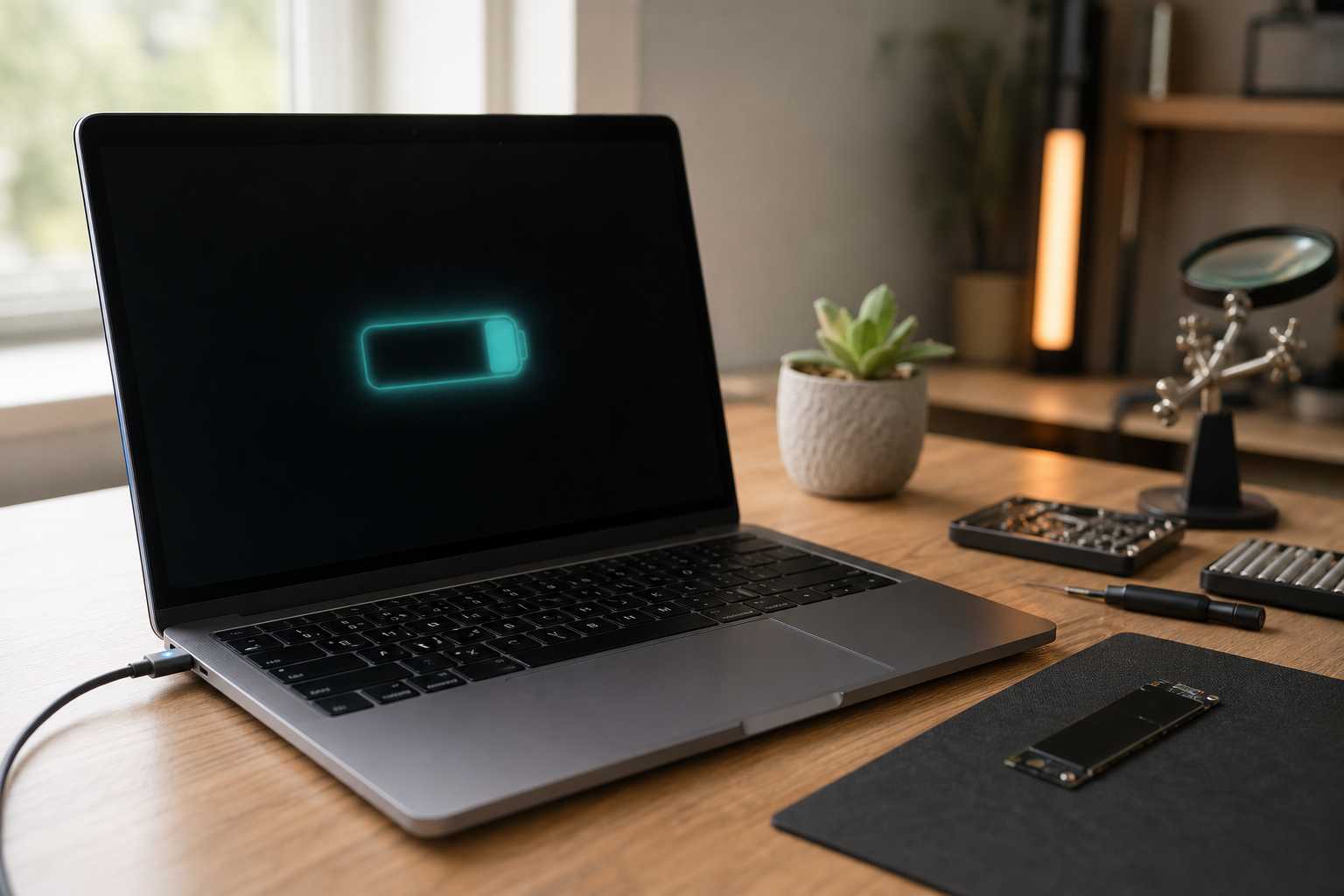
When a laptop is connected to its charger but the battery percentage is not increasing, the cause may be minor, such as a charge-limit setting or a loose connection. It can also indicate a worn battery, damaged charging port, failing adapter, or a problem with the laptop’s internal charging circuitry.
The message “plugged in, not charging” does not always mean the charger has failed. Many laptops intentionally pause charging near a selected level to reduce battery wear. The key questions are whether the laptop runs reliably on wall power, whether the battery percentage changes at all, and whether there are signs of physical damage or overheating.
What the message usually means
Several parts work together during charging: the wall outlet, power adapter, charging cable or connector, laptop charging port, battery, and internal power controls. A problem with any of these can prevent the battery from gaining charge.
Modern laptops may stop charging at 80 percent, or another selected level, when a battery-health feature is enabled. Charging may also pause temporarily if the battery or computer is too warm. These behaviors can be normal, but a laptop that never charges, loses power quickly, or works only with the adapter connected may need service.
Common signs and what they can suggest
- The laptop works only when plugged in: The battery may be worn out, disconnected internally, or unable to hold a charge.
- The charging icon appears and disappears: The adapter, cable, connector, or charging port may be loose or damaged.
- The battery stays at one percentage: A charge limit may be enabled, or the battery and its reporting system may need attention.
- The adapter is unusually hot: Some warmth is normal, but excessive heat, a burning odor, buzzing, or visible damage is not.
- The laptop charges only when the cable is positioned a certain way: The cable or charging port may be worn or physically damaged.
- The laptop shuts down unexpectedly away from the charger: The battery may be near the end of its useful life, even if the operating system displays a remaining percentage.
Safe checks to try
1. Check the outlet and connections
Confirm that the adapter is firmly connected to a working wall outlet and to the laptop. If the adapter has a detachable power cord, check both ends. Do not force the connector into the computer, and avoid repeatedly bending the cable.
If the charger uses USB-C, make sure it is connected to a port that supports charging. Some USB-C ports support data or video but do not accept power. If the laptop has multiple USB-C ports, try the port identified by the manufacturer for charging.
2. Check battery-protection settings
Open the laptop’s battery or power settings and look for options such as battery health, charge limit, conservation mode, smart charging, or adaptive charging. A setting that stops charging at 80 percent or another level may be working as intended.
If you need a full charge for travel, you may be able to change the setting temporarily through the laptop manufacturer’s approved software. Avoid unofficial utilities that claim to repair, revive, or recalibrate a battery. They cannot fix a physically damaged or worn-out battery and may create additional problems.
3. Restart the computer
A restart can clear a temporary power-management problem. Save your work, disconnect unnecessary accessories, restart normally, and reconnect the charger after the operating system loads. This is a low-risk check, but it will not repair a damaged adapter, port, or battery.
4. Inspect the charger externally
Look for cuts, crushed sections, frayed insulation, bent contacts, loose plugs, or discoloration. Check the adapter for cracks, swelling, a burning smell, or unusual noise. Do not open the power adapter or attempt to repair its wiring.
Use the charger specified for the laptop. A charger that fits physically may still have the wrong voltage, wattage, connector type, or USB-C Power Delivery rating. If you test with another adapter, use a known-compatible replacement from the laptop manufacturer or a reputable source. Do not use a random adapter simply because its plug fits.
When to stop using the laptop
Stop charging and disconnect the laptop if you notice a swollen case, raised keyboard or touchpad, smoke, a burning smell, liquid near the charging port, sparking, exposed wiring, or a battery that becomes unusually hot. A swollen battery can put pressure on other components. Do not squeeze, puncture, flatten, or remove it unless you are trained and the device’s service documentation specifically supports safe removal.
Do not place a damaged or swollen battery in household trash. Keep the device away from heat and combustible materials, avoid using it, and contact the manufacturer, an appropriately qualified repair provider, or a local battery-recycling or hazardous-waste service for handling guidance. If there is smoke, fire, or an immediate safety risk, move away and contact emergency services.
If liquid has entered the laptop, turn it off if doing so is safe, disconnect the charger, and stop testing it. Do not use a hair dryer, place the computer in rice, or repeatedly power it on to see whether it works. Liquid damage can continue causing corrosion after the exterior appears dry, so professional inspection is safer.
When professional service is likely needed
Arrange professional help if the laptop will not charge with a known-compatible adapter, the charging port feels loose, the battery percentage drops rapidly, the computer shuts down unexpectedly, or the system reports a battery error. A technician can assess the adapter, battery, charging port, and internal power circuits without relying on guesswork.
Battery replacement is not always the only solution. In some laptops, the charging port is a separate replaceable part. In others, it is mounted directly to the motherboard and requires more involved repair. A proper diagnosis helps avoid replacing parts that are still working.
Ways to reduce future charging problems
Handle the charging cable by its connector rather than pulling on the cord, and do not use the cable as a handle for the laptop. Avoid sharply folding it near the plug. Keep the computer’s vents unobstructed, use it on a hard surface when possible, and avoid leaving it in a hot vehicle. If the laptop offers a battery-health charging limit, using that feature during desk use may reduce the time the battery spends fully charged.
Back up important files before a battery or charging problem leaves the laptop unusable. Charging failures can sometimes occur alongside other hardware problems, and a current backup is safer than attempting recovery from a computer that will no longer start.
Need help with a laptop that will not charge?
AME Computers can help determine whether the cause is the charger, battery, charging port, or internal power circuitry. If the laptop shows physical damage, overheating, liquid exposure, or a swollen battery, stop using it and contact a qualified repair provider for safe next steps.