
Storage & Backups
No Bootable Device: Safe Checks Before You Risk Your Files
A “no bootable device” message means the computer cannot find a usable startup system. Learn what the message indicates, which checks are low-risk, and when to stop to protect your data.
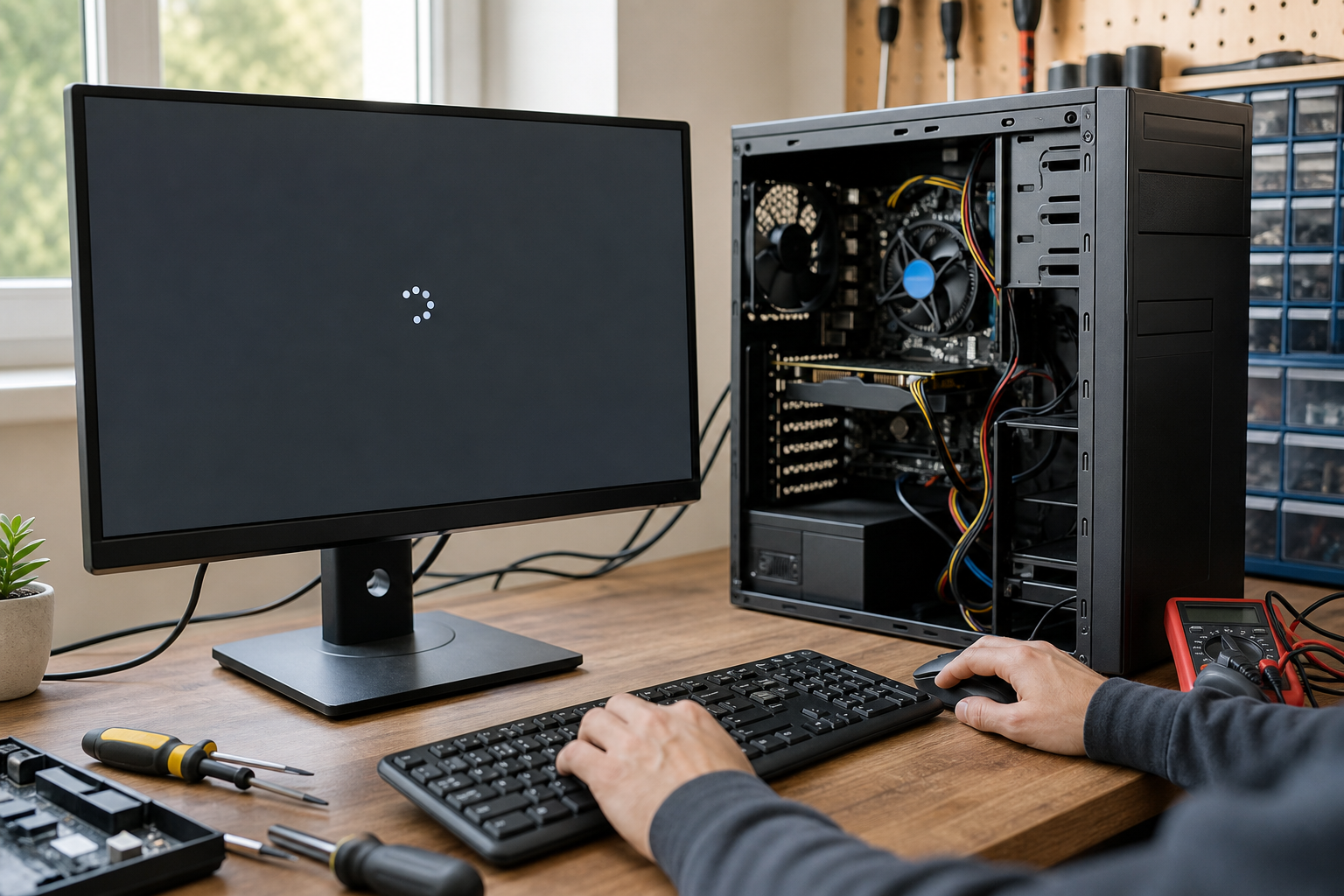
Messages such as “No bootable device,” “Operating system not found,” and “Boot device missing” appear before Windows or another operating system loads. They generally mean the computer cannot find a storage device with usable startup information. The message does not automatically mean that your personal files are gone, but it does explain why the computer cannot start normally.
The cause might be a removable USB device taking priority, a changed startup setting, damaged boot information, a loose internal connection, or a storage drive that is beginning to fail. The safest next step depends on whether the internal drive is detected and whether the computer contains files that are not backed up.
What happens during startup?
When a computer is turned on, its firmware—usually called UEFI or BIOS—checks essential hardware and looks for a device containing startup instructions. It then transfers control to the operating system.
A no-boot-device message means the firmware either cannot find the expected storage device or cannot find valid startup information on it. This is different from a Windows login problem. A forgotten password or an incorrect login normally appears after the operating system has already started.
Common causes and warning signs
- Removable media is being selected first: A USB flash drive, memory card, or external disk can sometimes be chosen ahead of the computer’s normal system drive.
- A startup setting changed: Firmware settings or a recent hardware change may have altered which device the computer tries first.
- Startup information is damaged: An interrupted update, power loss, file-system problem, or other software issue can affect the files needed to start the operating system.
- The drive is not detected: A connection problem or hardware failure may prevent the internal storage from appearing in UEFI or BIOS.
- The drive is detected but will not start: The storage device may be readable at a basic level while its operating-system files or boot configuration are damaged.
- The computer was already freezing or slowing down: Repeated freezes, drive errors, or unusual delays before the boot failure can be warning signs of storage trouble.
- The drive makes unusual sounds: Clicking, grinding, or repeated spin-up and spin-down noises from a traditional hard disk can indicate mechanical failure.
A message that appears once after a removable device was connected is often less concerning than one accompanied by missing firmware detection, unusual sounds, or a history of worsening performance. However, the message alone cannot confirm whether the problem is software or hardware.
Low-risk checks to try first
Record the exact wording of the message, or take a photograph of the screen. Small differences can help distinguish a missing storage device from a problem with startup information.
Shut the computer down normally if possible. Remove USB flash drives, memory cards, external hard drives, and other nonessential accessories. Then turn the computer on once. Do not disconnect an internal drive, and do not repeatedly restart the system if the drive is making unusual noises or the computer freezes during startup.
If the computer recently lost power, allow it to remain fully powered off before trying one controlled restart. Repeatedly holding down the power button is not a reliable repair and may add file-system damage if the system is still writing data.
You can also check whether the internal storage is visible in UEFI or BIOS. The key used to open that menu varies by manufacturer; common examples include F2, Delete, Esc, or F12. The correct key and menu names should be confirmed in the computer maker’s documentation or on-screen instructions.
In the firmware menu, look only for whether the internal storage device is listed. On some systems, the startup entry may be shown as “Windows Boot Manager” rather than the drive’s model name. If the drive is listed, note the current startup order, but avoid changing storage-controller modes, security options, or other firmware settings at random. An incorrect change can create another startup problem and make diagnosis more difficult.
When to stop troubleshooting
Stop and seek professional help if the drive clicks, grinds, repeatedly disappears from UEFI or BIOS, or causes the computer to freeze while it is being detected. These signs can point to physical storage failure. Continued attempts to start or scan a failing drive can reduce the chance of recovering important data.
If the computer contains irreplaceable photos, business documents, financial records, or other files without a current backup, do not reinstall the operating system, format or initialize the drive, or use repair instructions that modify its contents before the data has been considered. Even well-intended repair steps can overwrite information or make recovery more difficult.
Stop using the device if you notice smoke, a burning smell, liquid damage, exposed electrical components, or a swollen battery. Do not press on or puncture a swollen battery, and do not open the device to attempt electrical repairs. If it is safe to do so, power it down and disconnect the charger before arranging professional service.
What a professional evaluation may involve
A technician can determine whether the storage device is detected, assess its condition using an appropriate diagnostic process, and separate a boot-configuration issue from a failing drive. If the drive is stable and the data is backed up, repairing the startup environment or reinstalling the operating system may be reasonable. If the drive is failing or the files are especially important, preserving the data should come first.
There is no universal fix for this message. Replacing a failed drive may restore a working computer, but it does not restore files that were not backed up. Conversely, repairing startup information cannot solve a serious physical failure. Diagnosis should come before any step that changes, erases, or heavily scans the drive.
How to reduce the risk in the future
Keep at least one current backup of important files, and periodically confirm that the backup can be opened. A second copy stored on the same internal drive does not protect against that drive failing. For especially important information, keep another copy on a separate device or use a reputable cloud backup service.
Install operating-system updates when power is stable, avoid unplugging external storage while files are being copied, and respond promptly to new drive errors or severe slowdowns. Those symptoms are a good reason to check the backup before the computer stops starting.
Need help with a computer that will not start?
If your computer shows a no-boot-device message and the low-risk checks do not resolve it, AME Computers in Bellevue can help determine whether the issue involves startup settings, operating-system damage, or storage hardware. If your files may be at risk, mention that before authorizing repairs so data-preservation concerns can be considered first.